
What's New in Blackboard?
Sidebar
2026
Lock answer options in a fixed position for multiple choice and multiple answer questions
Impact: Instructors
Updated Help Topic: Multiple Choice Questions
Instructors can now lock specific answer options in a fixed position so they remain in place when other options are randomized. This is useful for answer choices such as "None of the above" or "All of the above" that should always appear at the end of the list regardless of randomization settings.
Instructors
When creating or editing a multiple choice or multiple answer question, instructors can designate specific answer options as locked. To lock an option in place, select Randomize answers in the Assessment Settings, then select the lock icon next to the answer option. Locked options remain in their set position during randomization while all other options shuffle as expected.
Instructors can remove a lock any time while editing the question before students have submitted attempts. Once students have submitted attempts, locking and randomization settings are fixed and cannot be changed to ensure fairness.
Improved rubric usability when adding or adjusting grades
Impact: Instructors
Idea Exchange ID: LEARNU-I-7398, LEARNU-I-5289, LEARNU-I-7526
To improve rubric usability, we have removed the locking mechanism that previously prevented instructors from using the rubric if an override grade or automatic zero was present.
Instructors can now also adjust the rubric calculated grade for individual attempts. Grades entered in the rubric grade pill update the attempt grade immediately. To improve consistency with the Flexible Grading page, we updated the rubric score box label from “Submission” to “Rubric Score”. To improve clarity, we also removed the sentence “You can only override the final grade for assessments with multiple attempts. Individual submissions are scored with a rubric.” from underneath the rubric score box.
For discussions and journals, instructors can now edit the rubric grade pill directly to adjust the rubric calculated score.
Track Announcement engagement by student
Impact: Instructors
Updated Help Topic: Student Overview
Idea Exchange ID: LEARNU-I-7959, LEARNU-I-1155, LEARNU-I-7972
Instructors can now check which announcements a student has read or not read on the new Announcements tab of the Student Overview page. The Announcements tab complements existing announcement engagement data by adding a student-level view and helps instructors identify students who may have missed important course communications.
Instructors
On the Student Overview page, instructors select the Announcements tab for a list of which announcements each student has and has not read.
Trigger Feedback Reminder automations when feedback is posted
Impact: Instructors
Updated Help Topic: Automations
The Feedback Reminder automation now more reliably notifies students when instructor feedback is available. Reminder automations trigger when feedback is posted, not only when grades are posted. Students receive notifications when the feedback that supports their learning is actually available.
Instructors
When an instructor creates a new Feedback Reminder automation, Blackboard LMS evaluates existing assignments in the course. It sends reminders for any feedback already posted but not yet checked by the student based on the parameters set by the instructor. This one-time evaluation applies only to feedback posted within the last 30 days. After that, the automation runs on its configured schedule and is triggered when feedback is posted. Reminders are sent once per feedback instance.
Enhance stability and usability of commenting tools
Impact: Instructors
Updated Help Page: Bb Annotate
We’ve made several improvements to the stability and usability of commenting tools in Bb Annotate. These fixes address issues with formatting, editing behavior, and overall interaction consistency to provide a more reliable grading and feedback experience.
Note
These fixes will be released on the following dates:
- North and South America: June 12, 2026
Instructors
The following issues have been resolved:
Comment formatting and appearance
- Selected font size in the comment text box now persists correctly
- Text color no longer resets to default after duplicating colored text
- Cursor color in the comment text box updates correctly
- Text highlighting no longer persists after reverting a comment
- Links without “www” are now clickable in comments
Editing behavior and workflow
- Comment edits no longer persist after selecting Cancel
- The Save button is correctly labeled in the comment edit dialog
- Anonymous comments no longer revert to public visibility
Navigation and interaction
- Improved keyboard focus behavior during comment editing
- Comments can now be deleted successfully from the Annotate thumbnail view
File handling and reliability
- The download option now reliably downloads annotated documents
These updates improve consistency across commenting workflows and help instructors provide feedback more efficiently.
Video Studio: Record Videos on Blackboard App (we have options for Announcements and Feedback Only)
Impact: Instructors
Updated Help Topic: Create Video Studio Recordings
Instructors can now record Video Studio videos directly from the Blackboard App on their mobile devices. Using their device's camera and microphone, instructors can add video content to Course Content pages and Documents without switching to a desktop. This gives instructors greater flexibility to create course content on the go.
Previously, the Blackboard App supported watching Video Studio recordings on mobile, but not creating them.
Provide answer-level feedback for multiple choice and multiple answer questions
Impact: Instructors and Students
Updated Help Topic: Multiple Choice Questions
Idea Exchange ID: Not applicable
Instructors can now add feedback for each answer option in multiple choice and multiple answer questions. This helps students understand why each choice is correct or incorrect after an attempt is submitted.
Instructors
When creating or editing a multiple choice or multiple answer question, instructors can turn on Option Feedback, which prompts Feedback textboxes to appear beneath each answer option. Instructors can enter the answer options and feedback for any of the options.
Note
At this time, option-level feedback is displayed to students for all answer options. In a future release, students will only see option level feedback for the answers they select.
Students
After submitting an attempt, students receive feedback for all answer options. This helps students understand their performance at a more detailed level and supports learning from incorrect choices.
Rebuilding the Groups management experience for instructors
Updated Help Topic: Create and Manage Groups (instructor)
We’ve redesigned Groups management to significantly improve usability, performance, and flexibility for instructors. This update addresses long‑standing challenges with creating, organizing, and managing groups—especially in large courses—and delivers a clearer, faster, and more consistent experience across group types.
The new Groups management experience focuses on reducing manual effort, improving visibility, and supporting common instructional workflows with fewer clicks and clearer controls.
Changes to the group management experience for instructors include:
- A redesigned group management experience
- Improved group creation and enrollment
- Automatic enrollment with clearer controls
- More flexible ways to assign students
- Better visibility and organization
- Sorting for students and groups
- Clearer group membership and activity context
- Performance and reliability improvements
- Consistency across group types
- Upcoming improvements
Instructors
A redesigned group management experience
Groups management has been reimagined from the ground up with a cleaner layout and more intuitive controls. The updated interface displays more information in less space, making it easier to manage groups and members without excessive scrolling.
Instructors now start by choosing how they want to structure groups—before managing individual members. The options include:
- manual assignment
- automatic assignment
- self‑enrollment
- import
This approach removes guesswork and streamlines setup for common scenarios.
Improved group creation and enrollment
Automatic enrollment with clearer controls
Instructors can automatically assign students to groups by specifying the number of members per group. Blackboard creates the required number of groups and assigns students randomly in a single step, reducing setup time for large courses.
More flexible ways to assign students
Instructors can assign and unassign students using multiple methods:
- Assign students directly from the unassigned list
- Assign selected students to a specific group
- Add or remove members from within a group
This flexibility reduces repetitive actions and makes it easier to focus on populating one group at a time or balancing membership across groups.
Better visibility and organization
Sorting for group members and groups
Instructors can now sort:
- Students by first name or last name (A–Z or Z–A)
- Student ID
- Groups by group name
- Groups by number of members
Sorting replaces inconsistent behaviors from the previous experience and provides predictable ordering when managing large enrollments.
Clearer group membership and activity context
Each group displays high‑level information about how it’s being used in the course, such as whether it’s assigned to tests, assignments, or discussions. Once group task types have been created and students begin submitting work, there is a gradual increase in action warnings or constraints. This helps instructors understand the impact of changes before modifying or deleting groups.
Group content, assignments, and membership are now more clearly connected, improving consistency across the course experience.
Performance and reliability improvements
Managing groups in large courses is now significantly faster. Save operations that previously took several minutes—especially in courses with thousands of students—now complete in seconds. When a group is being saved, an instructor can close out the page and be assured that it is continuing to save in the background, allowing instructors to continue working without interruption.
Additionally, the previous maximum limits of 5,000 students and 1,000 groups are removed.
These improvements reduce frustration and improve confidence when managing groups at scale.
Consistency across group types
Core actions and controls now behave the same way regardless of group type, reducing confusion and making it easier for instructors to switch between workflows. The rebuilt experience brings greater consistency across:
- Manually assigned groups
- Automatically assigned groups
- Self‑enrollment groups
Upcoming improvements
Future improvements to the group management experience include:
- Search within the group management screen
- Drag‑and‑drop assignment of students to groups
- Ability to create groups in bulk
- Improved sorting order when numbers are used as part of group name
- Improved handling of preview and unavailable students
Make second due date for Discussions visible in Gradebook
Updated Help Topic: Create Discussions (Instructor)
The second due date for Discussions now appears in the Gradebook's Overview and Gradable Items pages, allowing instructors to be more aware of and responsive to student discussions needing grading. This improvement reduces instructor confusion around deadlines for student engagement.
Instructors
The second discussion due date now appears in the following pages in Gradebook:
- Overview
- Gradable Items
Under Due Date on the Discussion item on each Gradebook page, the item's second, final due date is displayed. Next to that date is a circle icon with a lower case i inside. Hover over or tab to this icon, and a pop-up bubble displays details of both due dates. For example: This discussion has 2 due dates: Due date 1: 5/1/26, 12:00 PM Due date 2: 5/8/26, 12:00 PM
Instructors benefit from clearer communication of discussion expectations, reducing the need to clarify deadlines and helping ensure students understand how and when their contributions are graded.
Visualize release conditions inherited by items in learning modules and folders
Idea Exchange ID: LEARNU-I-3969
Instructors can now view release conditions inherited from a parent learning module or folder directly within the release conditions panel of individual items. Inherited conditions appear in a read-only format, giving instructors a clear picture of all conditions that apply to an item, including those set directly on the item and those cascading from a parent container.
Instructors
When instructors open the Release Conditions panel for an item inside a learning module or folder, a read-only summary of any conditions inherited from the parent container appears alongside any conditions applied directly to the item. This helps instructors understand the full set of access rules in place and determine whether additional conditions are needed.
Carry group filter into Flexible Grading
Idea Exchange ID: LEARNU-I-2393
The group filter selected in the Gradebook grid view now carries over into Flexible Grading. Instructors who filter by a group in the Gradebook will find only the students from that group when they enter Flexible Grading, and the active group filter is displayed within the Flexible Grading view. This feature does not apply to assessments that are graded anonymously. This update reduces the need to re-filter after switching views and keeps instructors focused on the most relevant students for their current grading task.
Resized Accommodations icon
The Accommodations icon has been updated to a smaller size across the product. The icon remains unchanged on the Student drill-down page. This update was made to make the icon consistent across the product and to support spacing in the new Gradebook Grid view and is being released in advance where applicable.
White space improvements in Documents
Idea Exchange ID: LEARNU-I-5040, LEARNU-I-6039, LEARNU-I-6963
We refined spacing and layout behavior in Documents to reduce unnecessary vertical white space and improve overall readability and visual balance.
These updates improve the presentation of content items—including images within content blocks—and apply consistently when editing existing content, creating new content, or using AI‑generated layouts.
Improved screen reader experience in Document view mode
Screen reader users now have a cleaner, more focused experience when navigating documents in view mode. Unnecessary row and column announcements have been removed to allow access to primary content in the correct order, left to right, across rows, columns, and blocks. Edit mode behavior is unchanged.
Improved search and navigation in Course Switcher
Updated Help Topic: Navigate Inside a Course (Instructors), Navigate Inside a Course (Students)
We’ve enhanced the Course Switcher in Blackboard Ultra Course View to make it faster and easier to move between courses. Users can now search for a course directly from the Course Switcher and navigate to it without first returning to the Courses page.
This update builds on the existing quick access to recent courses and helps reduce navigation friction when working across multiple courses.
Instructors and Students
The Course Switcher now includes a search box that allows users to quickly find and open any course they have access to. Instead of browsing the full Courses page, users can open the Course Switcher, search by course name or course ID and navigate directly to the selected course.
This enhancement complements existing options in the Course Switcher:
- Quick access to the four most recent courses
- A View All link that opens the full Courses page
By combining search with recent‑course access, the Course Switcher provides a centralized and efficient way to move between courses—helping users stay focused on their tasks rather than managing navigation.
Remove feature flag for Learning Module Table of Contents
Updated Help Topic: Create Learning Modules (Instructor), Learning Modules (Student)
In earlier releases, Blackboard introduced a Table of Contents (TOC) for Learning Modules for both instructors and students. This feature improved navigation and orientation within modules and was initially released behind a feature flag to support phased rollout and validation.
With the May release, the feature flag for the Instructor and Student Table of Contents is being removed. The Table of Contents is now permanently enabled for all users in Ultra Course View.
This change ensures a consistent experience across institutions and removes the need for administrators to manage this feature through the Administrator Panel.
Video Studio: Add Audio Descriptions for Inclusive Videos
Updated Help Topic: Edit and Manage Video Studio Content (Instructor), Video Studio Playback and Accessibility (Student)
Note: this is available for instructors in Announcements and Gradebook Feedback
Audio descriptions can only be supported in the English language at this time.
Video Studio now supports audio descriptions, making video content more accessible for students who are visually impaired or have low vision. Audio descriptions are spoken narrations that describe important visual elements—such as actions, settings, and on-screen text—that are not conveyed through audio alone. This feature strengthens Video Studio’s accessibility capabilities, supports compliance with accessibility standards such as WCAG, and helps institutions prepare for upcoming accessibility requirements while improving engagement for all learners.
Instructors
Instructors can add audio descriptions directly within Video Studio by typing descriptive text and assigning it to specific timestamps in a video. The system automatically converts the text into spoken audio using text-to-speech technology, eliminating the need to record or upload a separate audio track.
Instructors can preview, edit, or delete audio description entries before publishing to ensure accuracy, clarity, and quality. There is no character limit for audio description text, allowing instructors to provide meaningful context where needed.
Review both sets of Discussion due dates across multiple views in Blackboard
Updated Help Page: Create Discussions (Instructor)
Blackboard now surfaces both sets of due dates and participation requirements for Discussions across key areas of the application. This improvement builds on the recent addition of a second due date and participation requirement. Instructors and students get clearer expectations wherever they access Discussion details.
Instructors and Students
When instructors create a discussion with two due dates and participation requirements, both sets of requirements appear on the Course Content page, Discussion pages, the Gradebook student and instructor views, and the instructor’s Discussion analysis panel. Students can track expectations throughout the workflow without navigating back to the discussion itself.
- On the Course Content and Discussion pages, both due dates and their requirements appear together for quick reference.
- In the Gradebook student view, both dates appear.
- Instructors also get a new Due Dates and Requirements section in the grading view for an individual student. This section shows both due dates and the student’s progress toward each requirement.
AI Conversation: Use Message Limits
Updated Help Page: AI Conversation (Instructor); AI Conversation (Student)
Instructors can now guide the length of AI‑supported conversations, including Socratic Questioning, by setting message limits. These controls help students understand when to complete an interaction and keep conversations focused on the intended learning activity.
Instructors
When instructors configure an AI conversation, they can set a maximum message cap to shape the conversation duration.
Students
Students track their remaining responses during a conversation through a dynamic label. The label shows a caution icon when two responses remain. After the conversation reaches the message cap, students cannot add more responses. The message limit sets clear expectations for participation and completion.
Specify assignment submission type
Updated Help Topic: Submission Details
We introduced new assignment submission options that allow instructors to specify the type of submission they expect from students. This update improves clarity for students and optimizes the submission workflow based on the selected submission type.
Instructors
When creating or editing an assignment, instructors can define the expected submission type to guide how students submit their work. Selecting a specific submission type streamlines the student experience and reduces ambiguity about what is required.
Instructors can select one or more expected submission types when configuring an assignment:
- File upload
- Text entry
By default, File upload and Text entry are both selected.
The selected submission type is visible in assignment settings and student‑facing details. Instructors can change the selected submission type until students have started submitting attempts.
Students
Students are informed of the expected submission type and see a submission workflow optimized for that format.
- File submissions display a dedicated file drop zone where students can upload, preview (when supported), and remove files.
- Text submissions provide a streamlined rich text editor experience without a general file attachment option and include access to the Content Market for supported tools.
Improvements to multiple choice and multiple answer questions
Updated Help Topic: Multiple Choice Questions and Multiple Answer Questions
Based on client feedback, we made several improvements:
- For the multiple choice question, we modified the default number of answer options a student can select from 4 to 1.
- When creating or editing a multiple choice or multiple answer question, instructors can change the number of answer options that a student can select.
- Multiple choice answer options alphabetical labels (A, B, C, D) have also been restored.
Increased SafeAssign file size limit to 25 MB for DirectSubmit
We increased the SafeAssign file size limit to 25 MB for DirectSubmit submissions. This change supports larger documents that include images, tables, and complex formatting, reducing submission issues for students.
Existing submissions and SafeAssign reports remain fully compatible, and related system limits were reviewed to ensure continued stability.
Video Studio: Control Playback Speed
Updated Help Page: Video Studio (Instructor) and Video Studio (Student)
Users can now control video playback speed in Video Studio. This update supports a wider range of learning preferences and helps students move through content at a pace that matches their comprehension and schedule. Speed controls help students slow down complex explanations or move more quickly through familiar material without interrupting the experience.
Instructors and Students
When users watch a Video Studio recording, they choose from predefined speed options such as 0.5x, 0.75x, 1x, 1.25x, 1.5x, and 2x. Playback starts at 1x speed, and users can switch speeds at any time. Speed controls appear clearly in the player and work with mouse, keyboard, and touch interaction. The experience is consistent on desktop, tablet, and mobile devices.
This feature improves accessibility, helps students review content more efficiently, and supports instructors who design flexible learning experiences.
Add Substantive and Non‑substantive Content labels in instructor discussion analysis
Updated Help Page: Create Discussions (Instructor) View Discussion Performance and Analytics
Student posts and replies now have Substantive Content and Non-substantive Content labels in the instructor discussion analysis page. The labels clarify the meaning of the green and red highlighted text indicators in student responses and improve the grading process for instructors.
Instructors
When instructors review a student’s posts and replies, the instructor analysis page displays text labels with highlighted content. Green highlights include a Substantive Content label. Red highlights include a Non‑substantive Content label. The labels appear consistently across the analysis panel and meet accessibility requirements.
Adjust grades for individual student attempts in group submissions
We extended Flexible Grading to allow instructors to adjust attempt grades for individual students within a group submission. This update ensures that grades for group submissions can accurately reflect each student’s individual contribution, even when work is submitted as a single group attempt.
Instructors can override a group attempt score for individual group members directly from the grading interface. The interface clearly indicates when grades differ across group members, and adjustments can be removed by restoring a student’s grade to match the group attempt score.
Student names display in chosen sort order in Flexible Grading
We’ve improved how student names appear in Flexible Grading. The name display format is now linked to the selected sort order. By default, student names are now shown as Surname, First Name to help instructors quickly locate students. When sorting by First Name (ascending or descending), names display as First Name Surname.
Copy automations in course copies
Idea Exchange ID: LEARNU-I-7607
Automations now copy when courses are copied, restored, or imported. Automations are always copied in an inactive state and must be reviewed and activated in the destination course. This update reduces repeated work by removing the need to recreate automations for every course.
Administrators can:
- Copy to a new course or an existing course and the automations are copied but the activity log for the automations is not copied.
- Make an exact copy and the automations and the activity log are copied.
- Import a course package and automations are copied but the activity log is not copied.
- Restore a course and the automations and the activity log are copied.
Instructors
Instructors can copy content from the Course Content page. When they copy content at the course level, the course automations copy. If they drill into the course and copy at a more granular level, automations are not listed as an option and do not copy.
Handle images as thumbnail links in Announcement emails
Announcement emails now display previews of images included inside a Blackboard announcement. These image previews replace the previous image links that appeared as filenames in the email. When users select an image, it opens on a separate page for a larger, more detailed view. This update makes announcement content clearer and easier to understand directly from the email.
Instructors and students
Announcement emails display a small preview image for each image included in an announcement message. Selecting the image opens to a separate page with a more detailed view of that image. Users can close this page when they want to return to the original email announcement. To navigate to the announcement within Blackboard itself, users can select View Annoucement in the email message.
Require confirmation for updated email addresses – Removal of Feature Flag
Impact: All Users
In release 3900.125, we added a verification step when users update their email address in Blackboard. This was released behind a feature flag for administrators to switch on if they chose to use it.
This functionality is now permanently active to improve security and ensure reliable communications. The feature flag will also be removed from the administrator panel.
Enhanced threading experience in Course Messages
Impact: All Users
Updated Help Topic: Messages (Instructor)
When users send new messages, the system now attributes the message to an existing conversation. If no conversation exists, the system creates one. Any future messages between those users return to that same conversation. This update brings dispersed messages together and improves communication in courses.
The option to block replies is removed because it conflicts with the simplified threading experience.
Additionally, the rich text editor (RTE) and Send button now stay onscreen on smaller devices to improve usability.
Instructors and students
Users create and send messages as before. If messages already exist between users, the system attributes new messages to those conversations.
- In conversations that include all course members, all instructors, or all students, adding and removing members remains on one thread.
- In group conversations, changes to group membership can start a new conversation.
- When users add new members to a previous one‑on‑one conversation, the system starts a new, separate conversation.
- Deleting a message doesn’t delete the entire conversation.
- When instructors send a reminder from Gradebook, the system attributes the message to an existing conversation. Anonymous grading reminders go to email.
Generate Knowledge Checks with AI
Impact: Instructors
Updated Help Topic: Documents
We expanded AI‑assisted authoring to support generating multiple choice Knowledge Checks within Documents. This enhancement allows instructors to create just‑in‑time formative assessments using AI‑generated questions based on the content of their Document and any selected course materials.
Instructors
When inserting a Knowledge Check, instructors are now presented with two options: Enter my question or Auto generate question. Selecting Auto-generate question opens the Auto-Generate Question panel, which adapts the existing Question panel used in tests and question banks.
When using the Auto generate question option, instructors can define generation inputs with the following fields:
- A description text field
- A selector to choose course items to inform generation
- A complexity level slider with a range from Low to High
- Advanced options including an output language selector
- An informational banner that states: “This is auto-generated content and needs to be checked for accuracy and bias.”
The system generates four multiple choice questions at a time. Each generated question displays with a radio button so that the instructor can select one question to add to the Document. The instructor can then modify the question, answer options, and feedback after insertion. If the instructor opens the Knowledge Check option but does not add a question, the placeholder block remains empty and behaves as other empty content blocks do.
All questions are generated using only text content from the Document. Consideration of additional media or files will be handled as part of a future release.
Add a second participation requirement and due date in Discussions
Impact: Instructors and Students
Updated Help Topic: Create Discussions (Instructor)
Instructors can now add a second due date with participation requirements for Discussions. This update builds on recent enhancements for discussion participation requirements and gives instructors clearer ways to set expectations for discussion activity. Students get transparent guidance for discussion expectations and progress indicators for their participation.
Instructors
Instructors can set how many posts and replies that students must complete across two due dates.
The option Grade discussion must be selected to add a due dates and participation requirements. Enter a time and date under Due Date and specify participation requirements. Selecting Second Due Date adds another due date with its own requirements.
Instructors can disallow student posts or replies after the final due date by selecting Stop discussion activity after last due date.
Students
When students open a discussion, they find two clear participation requirements with separate due dates. As they post and reply, progress indicators update in real time.
Students can complete requirements in any order, but contributions after a due date won’t count toward that requirement. Once all requirements are met, the discussion is marked complete and Progress Tracking updates.
Question Title field relocated
Impact: Instructors
To reduce confusion identified through user feedback, we moved the Question Title field from the beginning of the question authoring workflow to the bottom, underneath the Question metadata field. Moving this field ensures that titles remain an optional metadata element and reduces cognitive load during question creation.
Partial credit limits removed for Multiple Choice and Multiple Answer
Impact: Instructors
Updated Help Topic: Multiple Answer Questions
We updated the partial credit system for Multiple Choice and Multiple Answer questions to allow instructors to assign credit values without the requirement that all designated values sum to 100%. This change supports more flexible grading strategies and enables instructors to represent varying levels of conceptual understanding without adjusting values to meet a fixed total.
The system now allows instructors to enter any partial credit value for each option within a range of –100% to +100%. Validation continues to warn instructors if total values exceed 100%, but it no longer blocks question setup. Instructors may now also enter positive credit values for options that are not marked as the correct answer The total partial credit value for correct answers should be at least 100%, and it may exceed 100%. Negative marking continues to operate when enabled. Instructors can adjust credit values during regrading as well.
Anonymous grading by question
Impact: Instructors
We extended support for anonymous grading of tests in Flexible Grading. Instructors can now grade anonymous by question in addition to grading anonymously by student.
When grading anonymous test submissions in Question View, the interface replaces the student name, avatar, and ID with an anonymous identifier and a blank avatar. All functionality available when grading non‑anonymous submissions by question is also available when grading anonymously. When anonymous grading is enabled, related APIs no longer return identifying information.
Increased file size limit to 25 MB for assignments and tests
Impact: Instructors and Students
Updated Help Topic: SafeAssign Supported File Types (Administrators, Instructors, and Students)
Idea Exchange ID: Not applicable
We increased the maximum supported SafeAssign file size from 10 MB to 25 MB. This enhancement supports modern academic workflows in which students frequently submit large documents. The increased file size applies to assignments and tests. Direct Submit will be included in a later release.
Metadata analysis layer in Originality Report
Impact: Instructors
Updated Help Topic: SafeAssign Originality Report
SafeAssign now includes a new metadata analysis layer within the Originality Report. In addition to traditional text matching, instructors can access contextual insights in the new Document Properties section in the report summary.
The Document Properties section lists metadata such as:
- Author/Created by
- File creation date/time
- Last modified by
- Last modified date/time
- Total ending time
- Document revision count
- Software used
These metadata signals complement existing detection methods, providing richer context and supporting more informed academic integrity reviews. Metadata insights respect anonymized grading settings and will only display identifying information when anonymization is not enabled. When specific metadata is unavailable, it will not be shown.
Use automations to remind students to check their feedback
Impact: Instructors
Updated Help Topic: Automations
Instructors can create automations that send a message to students who have unread feedback after an instructor-defined number of days. This feature saves time by automatically encouraging students to review their feedback, promoting student engagement.
Instructors
This release adds the Send feedback reminder option to the Automation gallery.
For the automation trigger, instructors select how many days feedback must remain unread before the message is sent.
A default reminder message is provided, and instructors can fully customize it at this stage. The message is sent to the student when the rule is triggered.
Stack blocks vertically in Documents
Impact: Instructors
Updated Help Topic: Not applicable
Idea Exchange ID: LEARNU-I-5104
Instructors can stack blocks in a single column in Documents to create cleaner layouts and reduce whitespace. A new toggle in the block toolbar allows switching between column-level and block-level editing. In column mode, actions apply to the entire column. In block mode, instructors can resize, move, or delete individual blocks.
Columns can also be dropped into another block’s area for more flexible layouts. These changes work with existing features such as undo/redo, printing, and AI layout generation. This enhancement also includes accessibility improvements for screen readers.
Course Announcements Do Not Display for Students in Ultra – Bug fix (Released January 29, 2026)
Description
In Ultra view mode, announcements created at the course level are not displayed as a pop-up message when students access the course.
Affected Version(s)
Learn 4000.4.0;Learn 4000.6.0;Learn 4000.8.0;Learn 4000.10.0
Observed Behavior:
The pop-up with the announcement is not displayed.
Expected Behavior:
The pop-up with the announcement is displayed.
Usability improvements for Document Block Layout – 4000.6
Impact: Instructors
Updated Help Page: "Resizing and moving blocks” section on Create Documents
To improve usability and accessibility, we restructured the menu for document block layout. Previously, all options for changing the row, size, or position of a block were in a single dropdown list. Now, these options are organized by type of change (row, size, and position).
Selecting the edit icon for a block prompts a menu with three options: Change row, Change [block/column] size, and Change [block/column] position. Each of these options have a sub-menu, with the related actions.
- Change row
- Move to row above
- Move to row below
- New row above
- Change [block/column] size
- Expand to the left
- Expand to the right
- Shrink from the left
- Shrink from the right
- Change [block/column] position
- Move to the left
- Move to the right
Expanded question options for true/false – 4000.6
Impact: Instructors
Updated Help Page: True/False Questions
We expanded the display options for true/false questions to include:
- True/False
- Yes/No
- Right/Wrong
- Agree/Disagree
These additional answer options display when:
- Instructors create or edit this question type when building a test or in a question bank
- Students answer the question
- Instructors grade the question
- Students review their submission or graded question
When converting courses, tests, or pools from Original to Ultra, questions with these display options convert to Ultra with the corresponding display option, Additionally, this enhancement includes improved keyboard navigation when creating true/false questions. We updated the styling of the answer selection for true/false questions to radio buttons.
Enhanced multiple choice and multiple answer workflow – 4000.6
Impact: Instructors and Students
We updated question setup to provide a more intuitive experience, including updating the default answer options from three to four and improving controls for how students interact with questions. These changes support greater flexibility in assessment design and an improved experience for students.
Instructors
To reduce setup time when creating a multiple choice question, we changed the default number of answer options from three to four. Instructors can add or remove answer options.
Instructors can now define the number of answer selections that a student can make for each multiple choice question. When the student takes the assessment, the system enforces the instructor’s selection limit.
The default is:
- 4 answer options
- partial/negative credit is off (no additional changes made to partial/negative credit for this release)
- students can select up to 4 answers
- if additional answers are added, selection limit remains at 4
- if answers are removed, instructor must select the selection limit
Students
For questions where students can select only one answer, the selection mechanism is radio buttons. For questions where students can select more than one answer, the selection mechanism is checkboxes.
Improved performance for large multiple choice or multiple answer tests – 4000.6
Impact: Instructors
We've optimized rendering of MCQ and True/False questions, significantly improving load times for large tests. For example, a 200-question test now loads in ~5 seconds, down from ~25 seconds, which equates to an 80% improvement.
Improved Gradebook download option – 4000.6
Impact: Instructors
Updated Help Page: Not applicable
Idea Exchange ID: Not applicable
In a previous release, we introduced an option for whether to include or exclude hidden items in the Gradebook download. In this release, we improved this functionality by making this option available only if the Gradebook has hidden items.
View activity log for Automations – 4000.6
Impact: Instructors
Updated Help Topic: Automations
Idea Exchange ID: Not applicable
Instructors can now access an activity log for each automation in their courses. The activity log lists the action date and time the automation was triggered and identifies the student and item that triggered it. This feature gives all instructors in the course visibility into when automations occur and which students receive automated messages.
Instructors
To view the activity log for an automation, instructors select View Automations from Course Assistants on the Course Content page, then select an automation. They then select the Activity Log tab.
Improved Automation placement on Course Content page – 4000.6
Impact: Administrators and Instructors
Updated Help Topic: Automations
Idea Exchange ID: Not applicable
The heading for the section on the Course Content page that includes automations is now Course Assistants instead of Virtual Assistant, and the AVA logo has been removed. This change clarifies that automations do not require an AVA license and helps prevent confusion for administrators and instructors.
Navigate courses and tools faster with refreshed user interface – 4000.6
Impact: All Users
Updated Help Topic: Multiple topics
Idea Exchange ID: LEARNU-I-2913, LEARNU-I-4193, LEARNU-I-4536
Video: Refreshed course navigation: Courses now opens in full-screen for better screen use. Home button replaces the "X" to exit the course. Breadcrumbs added for easier navigation. This video demonstrates the new functionality.
We’re introducing a refreshed Blackboard interface designed to make teaching and learning more intuitive and efficient. These updates help you find information faster, reduce clicks, and simplify tasks such as managing courses, grading, and configuring settings.
The changes reflect extensive feedback from instructors, administrators, and students and aim to:
- Use screen space more effectively
- Reduce navigation errors, such as accidental exits
- Improve performance and page load times
- Provide clearer context and orientation
- Minimize motion for smoother navigation
Changes include the following:
Refreshed Base Navigation
Cleaner layout for clear access to main navigation tabs with less clutter.
- User profile now appears at the top of the navigation, complete with profile image for easier customization.
- Admin and Sign Out options are moved to the bottom of the panel, separating them from other actions for clarity.
- Administrators can now access base navigation directly from the administrator panel, streamlining workflow transitions.
Course Panels Become Full-Screen Course Pages
Courses now open in full-screen mode to maximize horizontal space and reduce clutter. This update applies to top-level panels such as Course Content Homepage, Calendar, Announcements, Discussions, Gradebook, Analytics, Groups, and Achievements. Secondary panels will update in future releases.
Home button replaces Exit
The “X” to exit a course is replaced with a Home button that returns you to your institution’s landing page (Activity Stream, Institution page, or Courses page). The “X” remains for lower-level panels like learning modules for now.
Course ID and title in the header bar
The header now displays the course ID and title for better context. Breadcrumbs will be added in a future update to improve navigation further.
System navigation changes affect how the course ID and course title appear within the course experience. You can set and update these display options as part of the brand workflow, choosing how the course title and ID are shown.
Full-width banner
The course banner spans the full width of the screen with the course ID and title on a darker background for better clarity and accessibility. To improve accessibility, we recommend that your banner image not include text.
If a course doesn’t have a selected banner, a placeholder image will appear at the top. When using brands, this image will adopt a hue of the brand color you set, ensuring visual consistency across all courses.
Branded course menu
The course menu reflects your institution’s branding, using colors and styles from theme settings. The menu is positioned higher on the screen for better use of space.
Course Switcher
Users can quickly jump between their four most recent courses or go to the full Courses page. More enhancements are planned based on ongoing feedback.
2025
Set release conditions for open or started and for non-assessment content items – 4000.4
Impact: Instructors
Updated Help Topic: Content Release Conditions
Idea Exchange ID: LEARNU-I-638, LEARNU-I-394, LEARNU-I-2551, LEARNU-I-34
We expanded release conditions to include activity on items including non-assessment content. This enhancement allows conditions to be based on whether a student has opened or started content items such as documents, media, or course links. Instructors can now control access based on whether a student has opened or started a prerequisite content item.
Key options for release conditions:
- Unopened: The student has not accessed the item.
- Opened or Started: The student has accessed the item.
This enhancement supports flexible learning pathways and mastery-based progression. For example, an instructor can require students to open a reading or watch a video before an assessment becomes available.
Specify participation requirements for Discussions – 4000.4
Impact: Instructors
Updated Help Topic: Discussions (Instructor)
Instructors now have greater flexibility when managing student participation in Discussions. With this update, instructors can specify required student responses for a Discussion topic. It can be difficult for students to meet an instructor’s expectations in a discussion if those expectations are not clearly expressed. This enhancement allows instructors to more closely align grading requirements with their pedagogical goals and provides students with clear expectations for each phase of participation.
Instructors
Instructors can now make clear participation requirements to students. The initial release adds participation requirements to the existing due date(s) for discussions. Instructors can set requirements on the number of required posts and/or replies for a student to fulfil the requirement.
The status of participation requirements is updated through to completion, giving a student a clear understanding of progress made. Participation requirements are linked to progress tracking, so that will be accurately displayed for the student to monitor. Participation requirements are optional but recommended for maximum benefit.
This update does not affect grading workflows or Gradebook structure.
Students
The new participation requirements in Discussions give students a clearer understanding of instructor expectations in an assigned Discussions topic. Students can monitor their progress both in the assigned Discussions topic as well as in Progress Tracking.
AI Conversation – Remove Originality Reporting – 4000.4
Impact: Instructor
The AI Conversation tool in Blackboard supports student engagement through Socratic questioning and role-play activities. Instructors configure settings for each activity, including assessment and grading options. In this release, the Originality Reporting option has been removed from the settings panel. Because the activity involves interaction with an AI persona, Originality Reporting does not generate a meaningful report. Keeping the option could cause confusion, so it has been removed to improve clarity. Improves instructor experience by removing unsupported reporting.
Improved handling of group membership changes – 4000.4
Impact: Instructors
Updated Help Topic: Not applicable
Idea Exchange ID: Not applicable
We’ve enhanced Flexible Grading and the Submissions page for group assessments to better handle changes in group memberships. These improvements ensure grading accuracy and reduce confusion when groups are modified after submissions:
- On the Submissions page, if all members are removed from a group:
- The group avatar displays a ? icon.
- A No members label appears.
- The group name becomes non-selectable.
- For active groups, the Flexible Grading interface always shows the current group members for each attempt.
Standardized tabbed interface in Flexible Grading – 4000.4
Impact: Instructors
We improved the Flexible Grading experience by introducing a consistent tabbed interface for all submission types. Previously, tabs were only shown for file-based submissions. With this update, instructors will now see tabs for:
- Instructions: Always present, even if no instructions are provided (displays “No instructions” when empty).
- Submission: For text, LTI or mixed submissions (text, images, files).
- File tabs: Each file submitted appears in its own tab, rendered in Annotate when possible.
This enhancement makes grading more intuitive and efficient by providing a uniform layout across different submission formats. On mobile, navigation buttons appear at the top of the tabbed interface for quick access to previous and next submissions.
Better Audio and Video in Feedback – 4000.4
Impact: Instructors
Updated Help Topic: Video Studio (Instructor)
Instructors can now use the full Video Studio workflow when giving assessment feedback or working in Flexible Grading. They can record or upload video and audio directly in the feedback editor, using features like captioning, transcription, and editing to deliver clear, personalized communication.
This update makes feedback more engaging and accessible, and the workflow matches other Video Studio-supported areas in Blackboard Ultra.
Instructors
Instructors will see the Video Studio button in the feedback editor when grading. They can add media to express tone and intent more effectively. Video Studio supports automatic captioning and transcription and lets instructors edit recordings to improve clarity.
Availability: No Video Studio license required; available for all Ultra courses.
Improved Automations experience – 4000.4
Impact: Instructors
Updated Help Topic: Automations
We made several enhancements to Automations based on user feedback.
Instructors
- Better visibility of Automations actions
- Users can now check the status of each automation directly from the list.
- Each automation now displays who executed it, increasing transparency in multi-instructor courses.
- Cleaner interface and more intuitive interactions, including:
- Pagination on the automation list for smoother navigation.
- Improved error messaging and validation when configuring numeric inputs.
- Minor layout and usability improvements for the automation rules panel.
- String and localization improvements.
Support Inline and Display Formulas in MathJax – 4000.4
Impact: Instructors and Students
Updated Help Topic: Math Editor (Instructor), Math Editor (Student)
Idea Exchange ID: Not applicable
MathJax support in the Content Editor now includes additional LaTeX delimiters for rendering mathematical formulas. This update improves compatibility with standard STEM workflows and simplifies uploading exam content without changing source files.
Instructors and students can now use:
- \(...\) for inline equations
- \[...\] for display equations
These options are in addition to the existing $ delimiters. Expanded support improves the experience of working with mathematical notation in Ultra courses and enhances visual clarity for complex expressions such as integrals, sums, and products.
$$...$$ was previously implemented to render formulas inline due to the previous MathJax setup. With the new enhancement introducing \(...\) for inline and \[…\] for display, the rendering now follows MathJax’s standard behavior, where $$...$$ is treated as display mode.
Learning Module Table of Contents – Instructor View – 4000.4
Impact: Instructors
Updated Help Topic: Learning Modules (Instructor)
Idea Exchange ID: LEARNU-I-159
Instructors now have access to a collapsible Table of Contents panel in Learning Modules. This update mirrors the student experience and supports consistent navigation across roles. Instructors can quickly move between module items and access content that isn’t yet available to students—without switching to Student Preview or changing availability settings.
This streamlined workflow helps instructors review and organize course content more efficiently, saving time and improving course management.
The Table of Contents panel includes all items in a module. Select Contents to open or collapse the panel. Instructors can navigate the full module structure and align course design with the student experience.
For smaller screen sizes, when an instructor sets up an assignment within a learning module, the settings panel moves from the right-hand side into the header bar. This is signified by a settings cog.
The change has been made to allow more space on the screen with the left-handed table of contents available. Users accessing that board on smaller screens, you will notice that the settings cog has moved to the header bar for that particular piece of assessment.
For discussions instructors also see that the participation panel and settings panel both move into the header bar as buttons on smaller screen views.
Use New Spectator Role (Course Role) – 4000.4
Impact: Instructors & Administrators
Updated Help Topic: Course and Organization Roles (Administrator)
Idea Exchange ID: LEARNO-I-35
The Spectator course role gives institutions a flexible, read-only option for course access. Use this role for auditors, observers, or external reviewers who need to review course content without making changes or accessing administrative features. This role supports secure, non-intrusive access to course materials and improves oversight and collaboration.
The Spectator role applies at the course level and grants read-only access to all course content. Users with this role cannot edit, delete, grade, or change course settings.
The role uses the same permission checks as the Viewer system role but only applies to courses where the user is enrolled as a Spectator. Spectator users do not have access to administrator privileges or system-wide data.
Assign the Spectator role from the Role Management page using the course role selector. Administrators manage which courses a Spectator can access and for how long through enrollments.
Common uses include:
- Assigning Spectator to external auditors for accreditation reviews
- Giving department chairs or instructional designers access to observe course delivery
- Providing temporary, read-only access for peer review or compliance checks
Permanent “Course Complete” Banner in Closed Original Courses – 4000.4
Impact: Instructors
When an Original course is marked as complete, a permanent banner now appears on all course pages stating: This course is complete. No further modifications are allowed.
This banner provides clear visual confirmation that the course has ended. It aligns Original courses with Ultra courses, where this banner already exists.
Currently, the banner is informational only—users can still make edits. In an upcoming release, editing completed Original courses will be restricted.
Mobile
Managing Blackboard App Session Timeouts and Session Controls – 4000.4
Impact: All Users
Updated Help Topic: Session Management
Blackboard has updated the default session timeout for Blackboard App (mobile). The default session duration has been extended from 3 hours to 336 hours (14 days). This change applies only to institutions that have not previously customized their mobile session timeout setting. If your institution has already adjusted this value, your configuration will remain unchanged. This change supports a smoother mobile experience for Blackboard App users.
Administrators can review and adjust mobile session timeout and session control settings to balance security requirements with student convenience. These controls are available in Account Lock Settings under the Security section of the Administrator Panel.
Key options include:
- Mobile App Token Timeout: Defines how long a user stays signed in before reauthentication is required (configurable from 1–336 hours).
- Inactive Session Timeout: Sets the maximum idle time before automatic logout.
- Concurrent Session Control: Limits the number of devices or browsers a user can be signed into at once.
Feature behavior includes:
- The new default timeout reduces unexpected logouts for students, improving continuity across devices and sessions.
- Institutions with customized timeout settings will not be affected by this change.
- All session controls can be updated at any time; changes take effect immediately for new sessions.
- Adjusting these settings can help reduce support tickets related to login interruptions and align with compliance standards such as GovRamp and NIST.
NOTE: If students report frequent logouts, review your mobile session timeout settings to ensure they align with your institution’s needs.
Bb Annotate enhancements and bug fixes
Test/Stage: 12 December 2025; Production: 12 December 2025
Impact: Instructors
Updated Help Topic: Bb Annotate
NOTE: This is a maintenance update unrelated to Blackboard December 2025 release. This update is released into test/stage and production environments beginning December 12 and completing globally December 16.
We’ve addressed several issues to improve the reliability and user experience of Bb Annotate. Below are key fixes included in this release:
Text Selection & Highlighting
- Improved Highlighting Behavior. Fixed an issue where selecting the last character of a paragraph prevented proper text highlighting for comments.
Text Formatting & Color
- Font Color Consistency for Asian Languages. Corrected a bug where color changes applied to Chinese characters reverted to black after the first character.
- Stable Text Color in Text Boxes. Resolved an issue where text color reverted to black when moving the cursor within a text box.
- Comment Box Stability When Changing Text Color. Fixed a problem where the comment box disappeared when selecting a text color in “Fit Width” view.
Typing & Input Behavior
- Apostrophe Typing Issue. Eliminated a bug where typing apostrophes quickly caused the cursor to jump to the top of the page.
- Automatic Cursor Focus for Comments. Improved workflow by ensuring the cursor automatically focuses in the comment box when adding annotations.
Copy-Paste & Rich Text Handling
- Preserved Formatting When Pasting from External Sources. Fixed issues with text pasted from Google Docs and MS Word:
- Google Docs text now displays correctly without requiring fill color changes.
- Microsoft Word text no longer adds extra spaces.
- Inline Grading Stability with Named Colors. Resolved a JavaScript error that occurred when pasting formatted text containing named colors into the Inline Grading comment box.
Accessibility
- Improved Document Viewer Panel Adjustment. Enhanced usability by allowing keyboard navigation for resizing thumbnail previews, reducing reliance on drag-only adjustments.
Bulk change question points in tests – 4000.1
Impact: Instructors
Updated Help Topic: Edit Tests and Questions
Idea Exchange ID: LEARNU-I-247
Instructors can now efficiently update point values for multiple questions in tests using new bulk editing options. This enhancement supports:
- Selecting all questions at once, with the option to deselect specific questions if desired.
- Selecting specific questions (e.g., question 1, 4, 9, 15, 16, 27, and 32) for targeted point value adjustments.
- Selecting questions by type (e.g., all True/False questions) to apply consistent point value changes across that question type.
- Selecting questions by type AND specific questions.
Instructors
After students open the assessment or make submissions, instructors can make these changes:
- Edit the text of questions and answers
- Edit the point value
- New grades are recalculated for all previously submitted assessments
- Give everyone full credit for a question
- Change which answers are correct
- Change the scoring options for Multiple Choice and Matching questions
- Align questions with goals, from the assessment only
After students open the assessment, instructors can't make these changes:
- Add new questions and answers
- Delete a question
- Delete answers in Matching and Multiple Choice questions
- Change the number of blanks in a Fill in the Blanks question
- Move the content, such as switch the order of questions, answers, or additional content
- Add or remove questions from a question pool or delete a pool from an assessment
Improved navigation from Gradebook column headers – 4000.1
Impact: Instructors We enhanced the gradebook grid view to streamline access to submission pages from column headers on the Grades page. These updates improve clarity and consistency across item types.
Changes include:
- Assignments, Tests, Forms, Discussions, Journals:
- Replaced the Edit option with a View Submissions option using the eye icon.
- Renamed the grade cell menu option from View to View Submission.
- Manual Items, Calculations, Total Calculations:
- Added a View option to the column header that routes to the submission page.
- SCORM Items:
- Added a View Submissions option with the eye icon.
- Renamed the grade cell menu option to View Submission.
- Removed Edit and Preview SCORM options from the column header menu.
- Attendance:
- Replaced the Edit option with a View option using the eye icon.
- Navigation behavior remains unchanged, with users being routed to the attendance page.
Choose whether to include hidden items in Gradebook downloads – 4000.1
Impact: Instructors
Updated Help Topic: Work Offline with Grade Data
Idea Exchange ID: Not applicable
Instructors now have more flexibility when downloading the gradebook for offline use. Previously, downloads included only the columns visible to instructors. With this update, instructors can choose whether to include hidden items in the download file. This enhancement builds on prior improvements to the Item Management view, which introduced bulk show/hide controls.
Instructors
A new Include Hidden Items option appears when selecting Full Gradebook in Download Options. When selected, the download will contain all gradebook columns, including those hidden from instructor view.
Automations: Automatically send messages to students based on course-level rules – 4000.1
Impact: Instructors
Updated Help Topic: Automations
Idea Exchange ID: Not applicable
Instructors can now create automations that send congratulatory or supportive messages to students based on custom rules set at the course level. Instructors define the score thresholds and write the messages. These automations help instructors deliver timely, personalized feedback throughout the course, boosting student engagement and saving time.
Instructors
On the Course Content page, instructors select View Automations under Automations to manage their automations.
In this initial release, two automations are available. Instructors choose to either Send congratulatory message or Send supportive message. Congratulatory messages are sent when a student earns a high score; supportive messages are sent when a student does not achieve a specified score. Instructors select the grade item, set the score threshold as a percentage, and enter the message text.
Consistent Save and Cancel options in Settings page – 3902.1
Impact: Instructors
To improve usability and consistency, we standardized the Save and Cancel actions across several assessment settings pages.
Instructors
This enhancement includes the following updates:
- Timer settings: Removed the X icon and added Save and Cancel buttons.
- Access code settings: Replaced Close and Continue with Cancel and Save.
- Learning Outcome Measurements: Removed the X icon and added Save and Cancel buttons.
- Turnitin Originality Report settings: Removed the X icon and added Save and Cancel buttons. SafeAssign settings remain unchanged.
Tag questions with metadata in tests and question banks – 3902.1 Impact: Instructors Updated Help Topic: "Sort and search question banks" section of Question Banks Idea Exchange ID: LEARNU-I-932 Instructors can now tag questions with metadata when creating or editing questions in tests, forms, and banks.
Metadata is not visible to students during test-taking or review. Instructors When creating or editing a question, instructors can turn on Question metadata, then create or apply a tag to the question. Created tags become available in the Enter question tags search results, allowing instructors to apply that tag to other questions without needing to create them again. Metadata is visible during question creation or editing and can be used to filter questions when reusing or adding to pools. Created tags are facets in the Categories filter set available on the question banks and Reuse question pages.
Question metadata for tests and pools that were copied from Original is preserved. Original offered four metadata types: Category, Topics, Levels of Difficulty, and Keywords. When questions have metadata that belongs to Topics, Levels of Difficulty, or Keywords metadata type, that type also becomes available for filtering on the question banks and Reuse question pages.
Example: An instructor copied an Original question pool to Ultra. The question pool contained questions that had metadata for all four types. When viewing the question bank in Ultra, the Tags section of the filter panel has filter sets for Categories, Topics, Levels of Difficulty, and Keywords. The Original tags are facets in these filter sets.
Require questions before making forms visible to students – 3902.1
Impact: Instructors
Updated Help Topic: Forms
Idea Exchange ID: Not applicable
We improved the visibility controls for forms to align with those of tests. Previously, instructors could make a form visible to students, even if it contained no questions. This enhancement ensures that students only access complete and purposeful assessments.
Instructors must first add at least one question to a form before they can make it visible to students. Release conditions cannot be set until the form includes questions.
Improved student experience with fill in the blank question type – 3902.1
Impact: Students
Updated Help Topic: Fill in the Blank Questions
Idea Exchange ID: LEARNU-I-2027
We enhanced the student experience when answering fill in the blank questions in tests. Fill in the blank questions now display the blanks inline with the surrounding text, whether the question is presented as a sentence, paragraph, or table. We also added hidden ARIA labels to blanks to improve screen reader accessibility.
Enhance Documents with block styling options
Impact: Instructors
Updated Help Topic: Create Documents
Idea Exchange ID: LEARNU-I-5171
Instructors
We added block styling to Documents, giving instructors new ways to enhance visual appeal and guide student attention. The styling options feature both color and icons. The style options include:
- Question
- Tip
- Key points
- Next steps
- Image 1. Instructors can select styling options from a dropdown menu that appears in Edit mode on all block types.
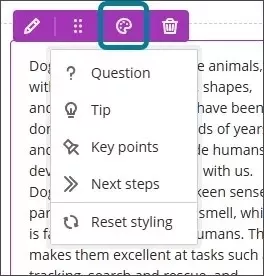
- This update helps instructors create more engaging content.
Best practices for using Block Styling Use Styling Purposefully
- Apply block styles to add visual interest, organize your content, and guide students through key ideas, actions, or reflections.
- Use styles consistently to build familiarity and reduce cognitive load.
- Clearly communicate the purpose of the styles to students to improve usability and accessibility and help all learners understand their significance
Style-Specific Guidance
- Question: Use for prompts or reflective questions. Keep questions concise and open-ended to encourage critical thinking.
- Tip: Use for tips, insights, or helpful suggestions. Ensure tips are actionable and relevant to the content.
- Key points: Use to highlight key points or essential facts. Keep these blocks brief and focused to reinforce retention.
- Next steps: Use for next steps or instructions. Present steps in a clear, logical order and consider using numbered lists for clarity.
Add and manage question titles in tests, forms, and banks Impact: Instructors
Updated Help Topic: Reuse Questions
Idea Exchange ID: BD-I-64
Instructors can now add, view, edit, and delete question titles when working on questions in tests, forms, and banks. Titles are optional and non-unique. Titles are recommended, as they enhance searchability and reuse workflows.
Instructors
In the keyword search in the Reuse question panel, instructors can now search for questions on the question text or the question title. Titles appear when:
- Creating or editing questions in tests, forms and banks
- Viewing or selecting questions via the Reuse questions workflow in tests, forms and banks
- Adding questions to pools (Add Question Pool workflow)
- Viewing questions in a pool (View Questions workflow)
Titles do not appear when the instructor views or grades the test and form submissions. Students do not see the question titles when they take a test or review their submission.
Export question banks in QTI v2.1 format
Impact: Instructors
Idea Exchange ID: LEARNU-I-2654
Instructors and instructional designers can now export question banks in the QTI v2.1 format. This enhancement supports the IMS Question and Test Interoperability (QTI) standard, which enables the exchange of assessment content between systems.
Instructors
This update allows instructors to:
- Export question banks from Ultra courses in QTI v2.1 format.
- Use exported packages in other learning platforms that support QTI.
- Simplify onboarding and migration processes by using a standards-based format.
This feature is especially useful for institutions that use multiple systems or are transitioning to Ultra.
The export process uses the same backend as Original courses, which already support QTI v2.1 export from Pools. This ensures consistency and reliability across course types.
Display time limits and extra time consistently across roles
Impact: All Users
Idea Exchange ID: LEARNU-I-5282, LEARNU-I-6822
We improved how time limits and extra time are communicated in Assessments. This change ensures that all users understand exactly how much time is available.
Now, all users have the time limits and extra time presented in a consistent format:
Example:
“Time limit: 20 minutes + 10 minutes extra time”
This format appears:
- When instructors configure or review assessment settings.
- When students begin or review an assessment.
- In the preview mode for instructors.
Require confirmation for updated email addresses – 3900.125
Impact: All users
All users
To enhance security and ensure reliable communication, we added a verification step when users update their email address in Blackboard. Now, whenever a user changes their email, a confirmation message is sent to the new address. The user must verify the new email before the change takes effect. This helps prevent issues caused by typos or incorrect addresses, ensuring users continue to receive important communications without interruption.
Simplify announcement creation with cleaner interface – 3900.125
Impact: Instructors
Updated Help Topic: Announcements
Instructors
We streamlined the New Announcement page by removing the unnecessary Recipients dropdown. Previously, this dropdown only offered one option—sending to all course members—making it redundant. With this update, the page now displays only relevant options, creating a cleaner, more focused interface and a smoother user experience.
Use pop-out rubric when grading group submissions
Impact: Instructors
Updated Help Topic: Not applicable
Idea Exchange ID: LEARNU-I-745
Instructors can now use the pop-out rubric when grading group submissions in Flexible Grading. This enhancement brings the same efficient grading experience already available for individual submissions to group work.
The pop-out rubric is a separate, moveable window and formatted in a grid view. Previously, the rubric was only available in a side panel and formatted in a stack. This update makes it easier to navigate and grade student submissions by providing a clearer, more comprehensive view of the rubric. Popping out the rubric lets instructors view the student submission and the rubric side-by-side for a more efficient grading experience. Instructors can quickly select performance levels and provide feedback in the rubric while viewing the student submission.
Instructors
Instructors can access the pop-out rubric when reviewing a submission.
- Bulk performance level selection: Apply a level across all criteria with one click.
- Cell syncing: Selected cells update the grade pill automatically.
- Focused feedback entry: Selecting a cell moves focus to the feedback textbox.
- Navigation warning: Alerts instructors if they try to leave with unsaved changes.
- Override warning: Shows a banner if the grade was overridden and disables rubric editing.
- Printing: Instructors can print blank or completed rubrics using the browser’s print function.
When the pop-out rubric is open, the ability to add Overall Feedback and grade with the rubric in the main grading interface is inactive. This prevents an instructor from editing the same information in two separate places simultaneously.
Display per question feedback to students on group test submissions
Impact: Students
Students can now view per-question feedback on group test submissions. Instructors have been able to provide per-question feedback, but it was not visible to students until now.
Students
With this update:
- Students reviewing a graded group test can see feedback for each question.
- Feedback supports all formats: text, file attachments, and video recordings.
Per-question feedback appears alongside overall feedback and rubric scores.
This enhancement ensures that group submissions benefit from the same detailed feedback experience as individual submissions. It also supports:
- Originality reports (when enabled via SafeAssign or TII).
- Attempt-level score overrides for individual group members.
- AI Rewrite for both overall and per question feedback.
- Navigation between group submissions using Previous/Next controls.
Use see-more functionality in Add Question Pool
Impact: Instructors
We added See more functionality for the Sources, Questions Types, and Tags filter sets. This enhancement helps instructors more easily navigate long lists of filter values when managing large pools of questions.
Instructors
In the Add Question Pool screen, the filter panel now includes See more functionality for Sources, Question Types, and Tags when the number of values in that filter section exceeds 10. Selecting See more expands the list, revealing the full list of values.
Improved accessibility on the Submissions list page in the Gradebook
Impact: Instructors
To improve accessibility, we updated the Submissions list page in the Gradebook to use a semantic HTML table structure. This change replaces the previous layout, which relied on stacked <div> elements. The new structure improves screen reader support and keyboard navigation.
- Screen reader users can now hear row and column headers as they navigate the table.
- Keyboard users can move efficiently across rows and columns without needing to tab through each element.
- The table uses proper HTML markup, including <caption>, <th>, <tr>, and <td> elements to ensure clarity and accessibility.
- The update applies to all submission list views, including standard, individual, and peer assessments.
This change aligns the Submissions list with the accessibility improvements previously made to the student Gradebook and supports Anthology’s commitment to inclusive design.
Ensure new courses use the latest Learning Object Repository content – 3900.123
Impact: Instructors and administrators
Updated Help Topic: Learning Object Repository
Instructors and Administrators
We enhanced the syncing logic in the Learning Object Repository. Courses that have ended or are marked as complete don't receive updates from the Learning Object Repository. This means Learning Object Repository objects may be updated after a course ends, but before that course is used as a template for a new one, which could cause outdated content to be copied forward.
Now, when content is copied from one course to another, the system will automatically pull in the latest version of each Learning Object Repository object to ensure that new courses always start with the most current materials. As a result, content authors no longer need to manually update Learning Object Repository objects after a course begins.
NOTE: The new behavior doesn't apply if the destination course is past its end date or has been marked as complete.
Improve LTI tool management with flexible copy options – 3900.123
Impact: Instructors and administrators
Instructors
Previously, LTI tools were only included when performing a full course copy. With this update, users who have the appropriate permissions can now select and copy individual LTIs. This enhancement provides greater flexibility and control for instructors and administrators using LTI tools.
While the LTI standard—particularly LTI 1.3 with LTI Advantage—supports copying tools between courses, the actual behavior of copied LTIs depends on how each provider has implemented the standard. Some tools may function immediately after copying, while others might require manual relinking or configuration to work properly in the new course.
To ensure a smooth experience, we recommend testing all copied LTI links, especially those involving grade synchronization, user data, or other course-specific functionality.
Ensure consistency with course-level group conversion – 3900.123
Impact: Instructors and administrators
Updated Help Topic: Create and Manage Groups
Instructors and administrators
We streamlined the process of converting groups from activity-level to course-level to improve consistency and ease of use for instructors.
All activity-level groups are now automatically converted to course-level groups:
- During course conversion from Original to Ultra.
- When course materials are copied into a new course.
All group associations with content items are preserved, so instructors don’t need to manually reassociate groups with content. Course-level groups offer more consistent group management and are easier to use across the course. This update ensures a smoother experience for instructors managing group activities.
NOTE: Group behavior for exact copies hasn’t changed.
Increased accessibility in the student Gradebook – 3900.123
Impact: Student
To improve accessibility, we updated the student Gradebook to use a semantic HTML table structure. This change replaces the previous layout, which relied on stacked <div> elements. The new structure improves screen reader support and keyboard navigation.
Increased accessibility in the student Overview page – 3900.123
Impact: Instructors
To improve accessibility, we updated the student Overview page to use a semantic HTML table structure. This change replaces the previous layout, which relied on stacked <div> elements. The new structure improves screen reader support and keyboard navigation.
Grade Export: Notification appears when grade approval action is completed – 3900.123
Test/Stage: 11 July 2025; Production: 11 July 2025
Impact: Instructors
A notification now appears at the top of the screen when graders take an action in the approval workflow, such as approving or extracting grades. This message indicates success or displays an error message. The notification helps users understand the outcome and avoid confusion.
Grade Export: Sort columns in the approval workflow – 3900.123
Test/Stage: 11 July 2025; Production: 11 July 2025
Impact: Instructors
Graders can now sort columns in the approval workflow by selecting the arrow next to the column header name. They can sort in ascending or descending order to organize items in a way that fits their workflow and makes items easier to find. This helps users quickly focus on the most relevant items and reduces time spent searching.
Grade Export: Access student username on the grade level approval screen – 3900.123
Test/Stage: 11 July 2025; Production: 11 July 2025
Impact: Instructors
We added the student username as a column to the grade level approval screen. This gives graders a way to differentiate between students who have the same or similar names, preventing confusion.
Grade Export: Use new approval statuses in Advanced Course Search – 3900.123
Test/Stage: 11 July 2025; Production: 11 July 2025
Impact: Instructors and Administrators
When using the Advanced Course Search, administrators and instructors who have the correct permissions will now be able to specify a wider variety of approval statuses to filter by, including Error, Locked, Partially Approved, and more. This gives users the ability to fine tune their searches and obtain more granular results, resulting in increased efficiency.
Instructors and Administrators
Administrators and instructors with appropriate permissions can now choose from the following statuses to filter by in the Advanced Course Search:
- All
- Approved
- Extracted
- Error
- Locked
- Partially Approved
- Partially Extracted
- Submitted
- Unapproved
- Unlocked
Adding Table of Contents to Learning Modules for students – 3900.123
Impact: Students
Updated Help Topic: Learning Modules (Student)
Idea Exchange ID: LEARNU-I-159
A table of contents for the instructor view is coming in a future release.
We’ve redesigned the Learning Module experience for students by adding a collapsible Table of Contents. This update improves navigation, orientation, and progress tracking. As part of this improvement, assessments now open in a full panel instead of a smaller panel. These updates create a more consistent and focused user experience.
This feature will be released to test environments in July and production in August. Institutions can opt out during the initial rollout.
Students
Students now have a simplified way to navigate and track progress in Learning Modules. Updates include:
- A table of contents for the items in a Learning Module. Select Contents to open and collapse the table of contents
- Easy navigation between items
- Manual or automatic item completion tracking from within the Learning Module
- Next and Previous buttons moved closer together at the top of the page for an improved experience.
Assessments within Learning Modules. Assessments now open in a full panel, providing a consistent and distraction-free experience.
Forced sequence in Learning Modules. When sequencing is enforced, students must use the Next and Previous buttons to move through content in order. Students can’t jump ahead using the table of contents unless they have already completed the item they are navigating to. Skipping ahead without completing a Learning Module item is disabled in this mode.
Enhance visual consistency for embedded LTI tools – 3900.123
Impact: Instructors and students
Updated Help Topic: Not applicable
Idea Exchange ID: Not applicable
Instructors and students
Previously, the width of embedded LTI tools was determined by the dimensions specified by the provider. This often led to unused space and grey letterboxing on either side of the content within Blackboard. With this update, all embedded LTIs now default to 100% width. This ensures that responsive tools make full use of the available space and aligns their behavior with standalone LTIs on the Course or Organization Content page, which also use 100% width by default.
This change brings visual consistency across Blackboard and enhances the user experience by eliminating unnecessary spacing and improving content presentation.
NOTE: Attention LTI Providers: With our recent update, all embedded LTIs now default to 100% width. This ensures responsive tools utilize the full available space. We strongly encourage providers to test their integrations and make any necessary changes to ensure proper display and compatibility with this new behavior.
Design engaging Documents faster with the AI Design Assistant – 3900.121
Impact: Instructors
Updated Help Topic: Create Documents
Instructors
Instructors can now use the AI Design Assistant to build visually appealing, interactive Documents more efficiently. The AI Design Assistant suggests layouts, generates knowledge checks, and generates or suggests images—saving time and helping students stay engaged. Instructors can focus more on teaching rather than formatting.
- Attractive layouts
- The AI Design Assistant suggests clean, structured layouts and adds helpful headings automatically.
- Images
- Instructors can include AI-generated images or choose from a selection of stock images from Unsplash.
- Knowledge checks
- The AI Design Assistant generates multiple choice questions based on the Document’s content to help check student understanding.
NOTE: Generating document layouts is especially helpful for instructors using the Convert a file block. The Convert a file block efficiently brings all content into a single block, making it quick and easy to get started. The AI Design Assistant enhances this process by automatically organizing the content into separate, structured blocks—saving instructors time and effort while improving the overall course layout.
Add captions to image blocks in Documents – 3900.121
Impact: Instructors
Updated Help Topic: Create Documents
Idea Exchange ID: LEARNU-I-4541
Instructors
Instructors can now add captions above or below image blocks in Documents. Captions provide context and support understanding, helping students engage more deeply with visual content.
Control how descriptions convert from Original to Ultra – 3900.121
Impact: Instructors and administrators
Updated Help Topic: Convert Courses to Ultra - Bulk Conversion
Instructors
We added a new feature to control how folder and learning module descriptions are converted from Original to Ultra. Original courses support rich formatting, embedded multimedia, file attachments, and over 750 characters in folder and learning module descriptions. When converted to Ultra, descriptions are limited to plain text with a 750-character limit. This can result in data loss. To prevent data loss, we added the option to convert folder and learning module descriptions to Documents during conversions from Original to Ultra.
Administrators
Administrators can find the feature labeled as Convert Folder and Learning Module Descriptions to Documents in Ultra Experience Management. When the feature is turned on, descriptions are converted into Documents to preserve content. The Document is placed within the associated folder or learning module. When the feature is off, descriptions convert as plain text with a 750-character limit.
We turned on this feature by default to prevent the high chance of data loss during conversion. When bulk converting courses, institutions need to decide whether they want this new feature turned on to reduce the amount of work to get courses ready for teaching and learning.
Allow instructors to switch between folders and learning modules – 3900.121
Impact: Instructors
Updated Help Topic: Create Learning Modules
Instructors
We streamlined the teaching experience by removing the Change Learning Module to Folder or Folder to Learning Module feature flag. Starting in version 3900.121, instructors can always change folders to learning modules and vice versa. Institutions that previously turned the feature off will now have it on by default. This update reflects Blackboard’s strategy of rolling out new features incrementally, while allowing institutions the flexibility to adopt them at their own pace.
Retroactively assign achievements to students – 3900.121
Impact: Instructors and students
Updated Help Topic: Achievements
Idea Exchange ID: LEARNU-I-6358, LEARNU-E-336
Instructors and students
Achievements can now be awarded after an assessment is created or completed. Instructors can use them more flexibly to recognize student progress. Students automatically receive any Achievements they’ve earned, no matter when they were added. This update empowers instructors to use Achievements more dynamically and ensures students are recognized for their accomplishments.
Support QTI question import in banks – 3900.121
Impact: Instructors
Updated Help Page: Question Banks
Idea Exchange ID: LEARNU-I-2654
Instructors
To enhance interoperability and streamline assessment creation, we now support importing questions from QTI packages into banks. Instructors and instructional designers often use different tools to create assessments, and ensuring a smooth transfer of questions between platforms is critical. With this update, users can import QTI v2.1 formatted questions into banks efficiently, maintaining compatibility with industry standards.
Questions that are supported include:
- True/False
- Multiple Choice
- Multiple Answer
- Fill-in-the-blank
- Essay
During the import process, users will receive notifications indicating the upload progress, success, or failure. If any individual questions cannot be converted due to unsupported types or behaviors, the system will provide clear feedback, ensuring instructors are informed of limitations.
This improvement allows institutions to leverage QTI-based assessment content more effectively, making course transitions and content management more seamless.
Apply the No Category option to Gradebook Items – 3900.121
Impact: Instructors
Updated Help Page: Grade categories
Idea Exchange ID: LEARNU-I-4041, LEARNU-I-4803, LEARNU-I-3649, LEARNU-I-5824
Managing graded items is now more flexible with the addition of the No Category option in the Grade Category dropdown menu. This change allows instructors to remove an item from a category without needing to assign it elsewhere. By selecting No Category, no category data is stored, keeping grading workflows simple while maintaining consistency.
Instructors
Instructors can now remove an item from a category when it's not needed, without automatically assigning it to another category. The No Category option appears in the Grade Category dropdown menu for all items, making it easy to keep grading structures clean and organized.
Selecting No Category ensures that the item is not linked to any grading category, and no data is stored for it in the system. This provides a more streamlined way to manage grades without unnecessary assignments. Instructors can now tailor grade organization more precisely to fit their course needs.
Enhanced pop-out rubric – 3900.121
Impact: Instructors
Updated Help Page: Not applicable
We made several enhancements to the pop-out rubric in the Gradebook.
- Attempting to close the pop-out rubric without saving your changes prompts a warning, reminding you to save your changes.
- Selecting Save no longer closes the pop-out rubric.
- We improved keyboard navigation, specifically arrow key and tab interaction, for the grid table.
Navigate with previous and next functionality in Group Submissions – 3900.121
Impact: Instructors
Reviewing and grading group submissions is now more efficient with the addition of Previous and Next navigation controls. Instructors can efficiently move between group submissions using header bar controls, creating a smoother grading experience with fewer clicks. Instructors Instructors can now navigate between group submissions without needing to return to the submission list. The Previous and Next buttons appear in the header bar.
Enhance instructor efficiency with expanded Activity page – 3900.121
Impact: Instructors
Updated Help Topic: Activity Page
Idea Exchange ID: LEARNU-I-171, LEARNU-I-868
We expanded and optimized the Activity page for instructors in Blackboard. Previously, the Activity page featured only the activity stream, which provided a chronological overview of course activity and upcoming events. Our latest update, developed in close collaboration with our global learning community, addresses the challenges instructors faced in managing a large number of courses. This update makes course management easier and more efficient.
The Activity page is responsive across all devices and can be accessed from both desktop web browsers and the Blackboard app. The activity stream is included with the new Activity page.
Instructors
New features on the Activity page:
- Course Section: The updated Activity page now includes a course section that outlines new activity in current, open courses since an instructor last logged into Blackboard.
- Shortcuts: New shortcuts have been added to enhance instructor efficiency.
- Go to items that need grading
- Find courses with new messages
- Access the Course Activity report directly to review students with alerts
- Shortcuts: New shortcuts have been added to enhance instructor efficiency.
Announcements: Read important institutional announcements.
Review student engagement with announcements – 3900.121
Impact: Instructors
Updated Help Topic: Announcements
Idea Exchange ID: LEARNU-I-730, LEARNU-I-1701
Instructors
Instructors can now verify which students have marked an announcement as viewed. By selecting the viewer count on the main Announcements page, instructors can open a list showing who has and hasn’t acknowledged the message. From this list, instructors can send a message to follow up with students who haven’t viewed the announcement or confirm that key information was received. This helps instructors understand how effectively their announcements are reaching students.
Render mathematical formulas with MathJax – 3900.121
Impact: Instructors, Students
Updated Help Page: Math Editor (Instructor)
We’ve enhanced the formula rendering experience in the Content Editor by implementing MathJax, a powerful tool for displaying mathematical notation. This update improves the visual accuracy and consistency of LaTeX-based formulas, aligning them more closely with scientific and academic standards.
MathJax offers a more precise rendering style preferred by many STEM instructors. When activated, MathJax will automatically render LaTeX code entered directly in the Content Editor across supported areas of Blackboard. Wiris is still available as the default to render formulas for the Content Editor. If MathJax is not activated, Wiris will render formulas.
NOTE: MathJax feature only supports $$..$$ delimiters at this time. MathJax rendering does not apply to the Math Editor (which is opened by selecting the plus button, then the Insert Math option in the Content Editor). Formulas created in the Math Editor continue to be rendered by Wiris.
Access Progress Tracking tool via Course Settings – 3900.121
Impact: Instructors
Updated Help Page: Progress Tracking (instructors), Progress Tracking for Administrators
Idea Exchange ID: Not applicable
We’ve streamlined the instructor experience by relocating the Progress Tracking tool from the Details & Actions section on the Course Content page and moving it to the Course Settings page. This change aligns with our ongoing effort to simplify the user interface.
Instructors
Instructors can now activate or deactivate Progress Tracking from the Course Settings page, under a new section labeled Progress Tracking. This improves an instructor’s experience by placing the tool outside of the Course Content page, which is primarily for daily work.
Add resizable dividers to Documents
Updated Help Page: Create Documents
Idea Exchange ID: LEARNU-I-5102
Instructors
We added a divider block to Documents. Dividers can be used to help students easily identify related and unrelated sections. This new feature will greatly improve the readability and structure of educational materials.
Key Features:
- Flexible: Dividers can be used in various ways to suit different instructional needs.
- Resizable: Dividers can be resized across up to four columns, providing flexible options.
Enhanced overall appearance and usability of Knowledge Checks
Updated Help Page: Create Documents
We made several adjustments to the appearance and responsive behavior of Knowledge Checks. These changes enhance the visual effects and usability for both instructors and students.
Instructors and students
- Answer Choices: The letters of answer choices now display at the top of each answer option, rather than in the middle.
- Answer Labels: Correct and incorrect answer labels have been moved from the side of an answer option to the top.
- Question Text Padding: Padding on the right side of question text that extended past the answer text has been removed.
- Small Screen Adjustments: On very small screens, the “Correct answer” label is now shortened to “Correct.”
Instructors
- Answer Metrics: Answer metrics now appear at the top of answer text alongside the correct and incorrect answer labels.
- Visual Indicators: Instead of highlighting questions with red and green to indicate the correctness of the answer, a colored bar now appears at the top of a question.
- Result Labels: Result labels are now displayed in lowercase instead of all capital letters.
- Small Screen Padding: Padding to the left and right of the Knowledge Check results has been removed for smaller screens.
- Participation Count: The number of students who participated is no longer shown as a fraction. Instead, students are described as part of a number. For example, "2 of 8 students participated."
Students
We made several changes to enhance the mobile and small screen experience for students.
- Submit Button: The Submit button now occupies the entire space at the bottom of a question, rather than just partial space on the right.
- Feedback Layout: For correct answers, the checkmark indicator, correct answer feedback, and Reset button now stack vertically instead of being on a single row. This change also applies to incorrect answer feedback and the Try again button.
- Answer Selection Indicator: On all screens, the answer a student selects now has a purple line to indicate it has been chosen.
Create Jumbled Sentence Questions
Updated Help Page: Jumbled Sentence Questions
Idea Exchange ID: LEARNU-I-1677
Instructors
Instructors can now create jumbled sentence questions for online exams. This feature lets instructors define one or more paragraphs with blanks for students to complete. Additionally, instructors can:
- Define distractors to challenge students
- Add automated feedback for correct and incorrect answers
- Designate questions as extra credit
- Use accessibility tools, such as keyboard-only workflows, to create this question type
To create a variable, insert the variable in square brackets within the paragraph. Each variable is automatically recognized as the correct answer. Instructors can enable partial credit to award points for partially correct responses. For example, if half of the answers are correct, half of the max points are awarded.
Variables can include the following characters:
- Letters
- Digits (0-9)
- Periods (.)
- Underscores (_)
- Hyphens (-)
The question text and variable input are validated for syntax correctness, notifying instructors of any errors, such as a missing bracket.
Example paragraph with variables:
Single water molecules are held together by [covalent] bonds and multiple water molecules are held together by [hydrogen] bonds. The kind of bond where atoms are sharing electrons but are not sharing them equally is [polar covalent bond].
Saved questions display variables in bold and underlined in purple for clarity. Instructors can also manually add feedback to student responses and use the Edit/Regrade workflow during grading.
Students
Answer options are displayed in a random order, ensuring fairness in the assessment experience.
Students can:
- Identify if a question is marked as extra credit
- Answer questions using assistive technology
- Auto-save their responses as they work
- Reset the question to clear all selections
Generate AI Jumbled Sentence Questions
Updated Help Page: Jumbled Sentence Questions
With the release of the new jumbled sentence question type, instructors can use AI to generate jumbled sentence questions.
Instructors
Jumbled Sentence is now an option in the Question Type dropdown. When creating the question in a test or a question bank, instructors can select Generate to produce the question content. Instructors can add the AI-generated jumbled sentence question to question pools or tests. Instructors can edit the AI-generated question, including points, distractors, automated feedback, extra credit, and partial credit settings.
Enhance student engagement with discussion activity indicator
Updated Help Page: Discussions (for instructors), Discussions (for students)
Instructors and students
We improved the discussion experience by adding another indicator of activity. This addition encourages student engagement and makes it easier for instructors to track student activity.
- Unread Discussion Posts: The Discussions page now shows the number of unread discussion posts from anywhere in a course.
Perform Bulk Category Changes in Item Management
Idea Exchange ID: LEARNU-I-311
Building on the new Item Management Gradebook view, instructors can now perform bulk category changes for Gradebook items.
Instructors
Instructors can select one or more gradebook columns on the Item Management page and assign them to an existing category.
Navigate the Gradable Items tab in the Gradebook
Updated Help Page: Accessibility Overview
Instructors
We have an ongoing commitment to the usability and accessibility of the Gradebook. The Gradable Items tab uses a table-based layout to improve navigation and interaction for instructors who use keyboards and screen readers. This makes the Gradebook more accessible for all instructors.
Navigate the Gradable Items tab by keyboard
- Use the Tab key to go to the Gradable Items tab.
- Tab to the Gradable Items table header to enter the table.
- Use the arrow keys to navigate the table.
- The Tab key will take you out of the table and to the Close button. Shift + Tab returns you to the Settings button.
Navigate the Gradable Items tab with screen readers
Screen reader users can navigate to the Gradable Items tab using the keyboard instructions. You can also use the specialized keyboard combination for your screen reader to go directly to the table.
- JAWS: Use Insert + Control + T
- NVDA: Use T, then Control + Down arrow to enter the table
- VoiceOver: Use Control + Option + Command + Right arrow key to choose the table option
- Once in the table, screen reader users can use table navigation (Control + Alt + arrow keys) to navigate the table.
- If you want to add content, use the down arrow to go to the More options button at the end of the row. The next down arrow will be the Add content button.
Note for JAWS users
- JAWS users can move left or right in any row by using table navigation keys.
- To move up and down between assignment rows, navigate to the Item column first.
Student Activity Log: Simplify review of student content access
Updated Help Page: Student Activity Log
Idea Exchange ID: LEARNU-I-6169
Instructors
We added two new features to the Student Activity Log to enhance tracking and reviewing student engagement. These updates streamline the evaluation process and provide more comprehensive data for instructors.
- Content Access Filter: The Student Activity Log now includes a filter for content access, recording information not available elsewhere, such as Kaltura content. This allows instructors to easily review students' access without needing to download and manually filter CSV files, saving time and simplifying the process.
- Enhanced LTI Access Filter: The LTI access filter now includes all types of LTI items, including LTI placeholders. This provides instructors with more detailed insights into how students interact with LTI elements in their courses.
AI Design Assistant: Auto-generate AI Conversations
Updated Help Page: AI Conversation
Instructors
The AI Design Assistant can now auto-generate AI Conversations. AI Conversations are conversations between students and an AI persona.
- Socratic Questioning: Conversations that encourage students to think critically through continuous questioning.
- Role-play: Conversations that allow students to play out scenarios with the AI persona, enhancing their learning experience.
Creating personas and topics for an AI Conversation can take a lot of time. To streamline this process, the AI Design Assistant can generate three suggestions at once. You can select what the AI Design Assistant generates. You can choose to generate:
- AI Conversation title
- AI persona
- Reflection question
These suggestions provide inspiration for an AI Conversation. Instructors can refine the AI Design Assistant’s suggestions in several ways:
- Provide additional context
- Adjust the complexity of the question
- Select context from the course
- Manually revise the question
The time saved by auto-generating AI Conversations allows instructors to focus more on embedding AI Conversations into their courses.
Learning Object Repository: New search function for inserting objects
Updated Help Page: Learning Object Repository
Instructors
We added a search function to the insert object workflow for the Learning Object Repository.
- Search by Name: Users can now search for objects by name, making it easier to find specific items.
- Pagination: The list of items supports retrieving more than 1,000 objects at once, giving users a wide variety of options.
- Automatic Sorting: The list is automatically sorted in alphabetical order for a more organized view.
This update enhances the workflow to make inserting objects easier and more efficient.
NOTE: Users must have permission to insert objects into courses. This permission is turned on by default for instructors and course builders.
Learning Object Repository: Notification emails
Updated Help Page: Learning Object Repository
Instructors
Based on your feedback, we updated the Learning Object Repository to remove confirmation email notifications when inserting an object from the Learning Object Repository into a course or organization. This update aligns Learning Object Repository functionality with how copies are handled in Ultra courses. Additionally, the update reduces unnecessary emails ensuring that users’ inboxes receive only essential communications.
"View submission one time" test results setting
Updated Help Page: Assessment Settings
Idea Exchange ID: LEARNU-I-355
We added a new test result setting option, View submission one time. When a student completes the test, they can review their answers and detailed feedback, such as which questions were answered correctly. The View submission one time option lets instructors provide students with immediate feedback, while maintaining test security.
Instructors
To access this setting option, select Available after submission in the Assessment results section of the Assessment Settings, then select View submission one time from the Customize when the submission content is visible to students dropdown. This dropdown is available only if Allow students to view their submission is selected.
Students
Students benefit from immediate feedback on their test performance in a secure and limited timeframe. Restricting access after the review session balances the need for meaningful insights with the importance of maintaining academic integrity.
Qualitative rubrics with no-points options
Updated Help Page: Create Rubrics
Idea Exchange ID: LEARNU-I-382
Instructors
Instructors can now create and use no-points rubrics for qualitative evaluation. This rubric type allows instructors to assess student work based on criteria and feedback, rather than numerical values. In addition, the AI generation option now supports no-points rubrics, providing a streamlined method to create detailed evaluation criteria.
Instructors can select No Points as a rubric type when creating or generating a rubric. This option is available alongside existing percentage and points-based rubrics. Instructors can also edit rubrics to switch between different rubric types, including percentage, points range, and no points.
Enhancements to discussions
Updated Help Page: Discussions (for instructors), Discussions (for students)
Idea Exchange ID: LEARNU-I-5098
Instructors and students
We made several enhancements to discussions to improve the user experience and make discussions more engaging and efficient.
- Updated wording: We used to call discussion contributions "responses" and "replies." We changed this to "posts" and "replies."
- Improved input field text: Previously, the text within the input field was "Type a response." The text within the input field is now "Post a response to the discussion."
- Avatar update: We previously included the user's avatar beside the input field. We removed the avatar to increase the area for adding content to the discussion.
- Streamlined response entry: The text field for entering a response is now directly below the discussion topic for a more intuitive experience.
- Instructor indicator: When an instructor posts in a discussion thread, an indicator beside their name now identifies them as an instructor.
- Simplified group discussions: The large banner beneath group discussion posts has been removed. Users can now directly select their group without distraction.
Gradebook accessibility enhancements
Instructors
The Gradable Items tab in the Gradebook now features a redesigned interface to improve accessibility and navigation for keyboard-only and screen reader users. This enhancement supports an accessible experience for instructors grading student work, reducing the time and effort required to manage student grades.
With this update, the Gradable Items tab uses a table-based layout to enhance usability:
- Screen reader users can now hear both header and row announcements, allowing for smoother navigation through student submissions.
Keyboard users can now move efficiently across rows or down columns using arrow keys.
Text-based columns in Gradebook
Updated Help Page: Ultra Gradebook
Idea Exchange ID: LEARNU-I-1566
Instructors can now create custom text-based columns in the Gradebook, giving them the ability to record information for an assessment, such as performance code, group membership, and tutoring information.
Text-based columns in the Gradable Items view are accessible through a properly marked-up table layout. Screen reader users can navigate and hear headers and rows accurately. Sorting and assistive technology features ensure an inclusive experience for all users.
Instructors
Instructors can now create text-based columns in the Gradebook. These columns allow instructors to record up to 32 characters. The column is not restricted to text input.
Instructors can:
- Create text-based columns via the Add workflow in both the grid view and Gradable Items page;
- Name the column, control student visibility, and add a description;
- Add and edit text information for a specific student using an inline eidt workflow.
Text-based columns exclude the following:
- Points values (automatically set to 0 points)
- Due dates
- Categories
- Gradebook calculations and related calculation UIs
Content in text-based columns auto-posts and supports sorting functionality within the Gradebook grid view. Instructors can also download and upload text-based columns using the Gradebook's upload/download function.
Students
Students can access text-based columns and associated information in their Gradebook when the column is set to Visible to students.
Learning Object Repository
Help Topic: Learning Object Repository
Idea Exchange ID: LEARNU-I-3138
The new Learning Object Repository is an institutional repository designed to centralize resources across courses and organizations. Administrators can upload objects to the Learning Object Repository for instructors to copy into their courses. Updates to objects in the Learning Object Repository are automatically applied to all associated courses and organizations, saving instructors time and maintaining consistency. Changes aren’t applied to courses that are marked complete or with an end date/term end date in the past.
This is the initial release of the Learning Object Repository. The capabilities of this release are best suited to reusing institutional content. Program or department uses will be better suited to future planned updates.
Good candidates for objects to keep in the Learning Object Repository include:
- technology requirements
- AI policies
- course etiquette
- academic integrity policies
At this time, only Documents are available for the Learning Object Repository. File uploads are coming in a future update. We'll add other objects in future releases. Administrators can access the Learning Object Repository through the Tools page in Blackboard.
Managing objects
By default, users with the System Administrator (Z) role are the only users who have access to the Learning Object Repository to manage objects. To create a custom role or give someone access to the Learning Object Repository, users must be granted the following system privileges:
- Individuals with this privilege can view the Learning Object Repository from the Tools page.
- Individuals with this privilege can create, edit, and delete objects in the Learning Object Repository.
- Individuals with this privilege can insert objects from the Learning Object Repository into courses and organizations.
Inserting objects
By default, users with the Instructor, Course Builder, or System Administration roles are the only users who can insert objects from the Learning Object Repository into a course or organization. To give a user access to insert objects from the Learning Object Repository, administrators must grant the following privileges:
- Course/Organization (Content Areas) > Create Materials
Individuals with this privilege can insert objects from the Learning Object Repository into courses and organizations.
Instructors
Instructors access the Learning Object Repository through the More options menu on the Course Content page. Instructors can copy an object from the Learning Object Repository, but certain attributes are locked down. For example, instructors are locked out from editing the title, description, and body of a Document.
Content Designer: Print Document
Help Topic: Create Documents
Idea Exchange ID: LEARNU-I-95
Instructors and students can now print Documents or save them to PDF, providing more ways to engage with content. This new option allows users to:
- Review content offline
- Share content with students or peers
- Physically archive content
To print a Document, select Print. Use the browser to print options to select the following:
- A printer or the PDF option
- The page range
- The layout
When printing from a mobile device, the Document prints as displayed on a desktop web browser.
Depending on the size of some content (for example, images), items may shift to the next page depending on the page layout and scale.
Instructors
- Knowledge check blocks print with all the question and answer options.
- All other blocks print as displayed outside of editing mode.
Students
- Knowledge check blocks appear in the same way that they are on the Document page when the student chooses to print.If a student hasn’t answered a knowledge check, the block prints as unanswered.
- If a student has answered the knowledge check, the block prints as displayed along with any instructor feedback.
Course Activity improvements: Sending messages
Help Page: Course Activity Report
Instructors
We improved sending messages from the Course Activity report.
- Instructors can now select all students for courses with over 3000 students. Previously, the option to select all students was only for courses with 3000 students or fewer.
- To be more user-friendly, the Recipients field now includes the following group labels:
- All students
- Selected students
- Selected students with alerts
- Selected students without alerts
These enhancements make it easier to communicate with students in large classes, including students with or without alerts.
Activity indicator color changed to purple
Help Topics: Navigate Inside an Ultra Course for Students, Navigate Inside an Ultra Course for Instructors
Idea Exchange ID: Not applicable
Instructors and students
The color of the activity indicator for discussions, journals, and conversations is changed from blue to purple to better unify the color scheme of Blackboard. Users now have a more consistent and cohesive experience.
Indicator if student has or has not reviewed feedback
Idea Exchange ID: LEARNU-I-1612
Instructors
In the Gradebook, instructors now have enhanced ability to monitor student engagement with assessment feedback. An indicator on the student Overview page now displays whether a student has reviewed the feedback for a given assessment.
When a grade is posted, the indicator includes a label of Not reviewed with the existing Completed label in the Status column. When the student reviews the feedback, the status updates to Reviewed with a review timestamp.
If the new grade indicator is reset for the assessment, such as when a grade is updated or if the assessment has multiple attempts, the timestamp updates when the student reviews the feedback again. If all attempts are deleted, the Not reviewed or Reviewed label is removed.
Replace Feedback column with actionable Results column in student Gradebook
Help Page: Grades (Students)
Idea Exchange ID: LEARNU-I-4329, LEARNU-I-5949
To encourage student to review their submitted assessments in the Gradebook:
- A new Results column replaces the Feedback column
- A View button in the new Results column replaces the Feedback column's purple feedback icon
When a grade is posted and the new grade indicator (purple circle) is turned on, the View button displays for the assessment. By proving a clear call-to-action, students are more likely to review their submission and feedback.
Students
When students select the View button, the new grade indicator turns off, and students are redirected to their submission. If no submission is made, the side panels with feedback opens. The View button remains unless the instructor deletes the graded submission and all attempts.
Enhanced grading experience for group submissions
Help Page: Grade Group Assignments
Idea Exchange ID: Not applicable
We migrated group grading to Flexible Grading. Instructors now have a more streamlined experience when grading group assignment and test submissions in Flexible Grading. This update allows instructors to benefit from the more efficient grading interface and workflow of Flexible Grading when evaluating group submissions.
Some capabilities for individual submissions, such as per question feedback on group test submissions and pop-out rubric on group assignment submissions, will be added to group submissions after this initial release.
Course Activity improvements: 3000 student limit removed
Help Page: Course Activity Report
Idea Exchange ID: Not applicable
Instructors
We removed the limit to how many students were included in the Course Activity report. Courses with over 3000 students now correctly include all students in the report. Previously, courses with over 3000 students would only include the first 3000 students in the Course Activity report. Managing larger courses is now more accurate and user-friendly for instructors.
Improved Support for LTI: Resize Requests
TI providers can now specify their desired height for embedded LTIs in Blackboard. Previously, all embedded LTIs were set to a fixed height, which often resulted in excessive white space below content.
- Adjusting height for embedded LTIs is supported through the lti.frameResize post message. This applies to all locations where LTIs can be embedded within the rich content editor.
Instructors and students
This enhancement ensures a more visually appealing interface for users. The cleaner layout helps users focus better on the content.
AI Design Assistant: Energy-saving image generation improvements
Help Page: Add Files, Images, Audio, and Video
Instructors
We changed how the AI Design Assistant presents generated images. Instead of presenting four at a time, the AI Design Assistant now generates only one. Each time another image is generated, it is saved so that instructors can select previously generated images. When an instructor selects an image or exits image generation, all images are cleared. This new method saves processing power and is more environmentally friendly.
AI Design Assistant: Learning module generation improvements
Help Page: Create Learning Modules
Instructors
We made two enhancements to the user experience when generating learning modules. If an image isn't generated with a learning module, the title and description will no longer shift to the left. A placeholder image is now used to ensure a consistent reading experience.
We also added a refresh button to learning module images so instructors can easily generate a new image. This feature is particularly useful for modules where images were not created or for regenerating images that the instructor doesn’t want to use.
Release conditions panel: due dates now included
Help Page: Content Release Conditions
Idea Exchange ID: LEARNU-I-1886
Instructors
When instructors customize release conditions for a content item, the due date for the item is now included with the date and time fields. Instructors are no longer required to go back to the item to check the due date, which saves time and reduces errors.
Anonymous discussions: New privilege to reveal author
Help Topic: Create Discussions (Instructor), Discussions (Student)
Idea Exchange ID: LEARNU-I-4139
All users
System administrators or other users with the assigned system role privilege can now reveal the identity of the author of an anonymous discussion post or reply. This enhancement addresses instances where the anonymous feature is misused, such as bullying or other inappropriate behavior. Instructors can create anonymous discussions with confidence that any misuse can be quickly resolved.
Instructors and students
There’s now a warning that informs users that their identity can be revealed by an authorized user.
Usability improvements for discussions
Help Topic: Discussions (Instructor), Discussions (Student)
Idea Exchange ID: LEARNU-I-3567
We made several improvements to enhance the overall usability and efficiency of discussions, benefiting both instructors and students.
Instructors and students
- Improved visibility: Posts now have a gray background to stand out better against the page.
- Full post display: Long discussion posts are now fully visible without the need for scrolling, enhancing readability.
Instructors
We made several optimizations to enhance the accessibility of key features on the discussion home page.
- Participation metrics: The number of posts and replies is now listed directly on the discussion home page, replacing the total response counter. This change makes important information more immediately available.
- Direct edit option: The Edit button is now directly accessible from the post, saving instructors time.
Pop-out rubric when evaluating an attempt
Updated Topic: Grade with Rubrics
Idea Exchange ID: LEARNU-I-745
To enhance grading efficiency, instructors can now pop out the grading rubric into a separate window when grading an assignment submission. The pop-out rubric is a separate, moveable window and formatted in a grid view. Previously, the rubric was only available in a side panel and formatted in a stack.
This update makes it easier to navigate and grade student submissions by providing a clearer, more comprehensive view of the rubric. Popping out the rubric lets instructors view the student submission and the rubric side-by-side for a more efficient grading experience. Instructors can quickly select performance levels and provide feedback in the rubric while viewing the student submission.
Instructors
Instructors can access the pop-out rubric when reviewing a submission.
- Bulk Performance Level Selection: Instructors select a performance level heading to apply it across all relevant criteria, streamlining the grading process.
- Cell Selection and Syncing: Selected rubric cells are highlighted, and the associated grade pill updates to reflect the chosen score. When the instructor selects Save, performance levels and feedback appear in the gradebook, as it has prior to this update.
- Feedback Section Focus: Once a rubric cell is selected, the criterion feedback section automatically focuses on the textbox for immediate feedback entry.
- Navigation Warning: A warning appears if instructors have unsaved changes in the pop-out rubric and they attempt to navigate to another student or attempt.
- Grade Override Warning: If the grade is overridden, the rubric popout is inactive. A banner appears, showing that the grade was overridden, with an option to regrade using the rubric.
- Printing: Instructors can print a blank or completed rubric using the browser's print function.
When the pop-out rubric is open, the ability to add Overall Feedback and grade with the rubric in the main grading interface is inactive. This prevents an instructor from editing the same information in two separate places simultaneously.
New student submission review page for tests
Idea Exchange ID: LEARNU-I-1415
We are introducing a new and enhanced student-facing submission review page for tests. This review page is similar to the review page for assignments, which we introduced in the 3900.100 September 2024 release.
The new review page for tests ensures that all feedback is clearly laid out and easy for students to identify.
Image 1: The student view of the graded test submission includes a submission timestamp, submission receipt
Students
Students can access the new test submission review page from these locations:
- The gradebook feedback button for the test
- The small panel that displays when students access a test from the Course Content page
If a student submits multiple attempts, they can review each attempt on the submission review page. The instructor defines which attempt to grade in the test's final grade calculation setting.
The new test submission review page displays the following information and feedback formats:
- Test content
- Student submission with question-level grades and feedback
- Submission timestamp
- Submission receipt
- Final grade and calculation model
- Attempt grade and feedback
- Override grade and feedback (if applicable)
Students can access all feedback on their submission, even if the assignment is hidden by a release condition.
Show/hide calculation columns in the gradebook
Instructors can now configure visibility for calculated columns from Items Management.
This enhancement streamlines the grading process and creates a cleaner, more organized grading workspace. To ensure that essential grading information is always available, the Overall Grade column cannot be hidden.
Course Access user experience improvements
Help Page: Course Settings, Managing Course Terms and Access
We have improved the user interface for managing course access for users. We have clarified the labels for hiding a course listing on the instructor view of the Courses page. We have also clarified the functionality of Course Status within Course Settings. No changes have been made to the underlying functionality of course access. These improvements make it easier for instructors to manage course visibility and access for users.
Instructors
Course Settings page
In Course Settings, the previous toggle switch for opening or closing a course has been replaced with radio buttons labeled Open and Closed. This change better indicates course status for enrolled students.
Courses page
On the Courses page, the label Hide course has been changed to Hide course from me. This change clarifies that the action only hides the course from the instructor on the Courses page, not from enrolled students.
Once a course is hidden from instructor view on the Courses page, the dropdown menu for Filters lists Hidden from me as an option. Selecting this option makes any hidden courses appear again on the Courses page.
Copy Banners Between Courses
Help Page: Copy Content from Courses
Idea Exchange ID: LEARNU-I-3481
Instructors
Instructors now have the option to copy banners between courses. This is ideal for instructors who prefer to copy course content in parts rather than performing a full course copy. This saves instructors time during course setup and rollover. Banners can be copied from Ultra or Original courses.
Exclude descriptions from learning modules generated by AI Design Assistant
Updated Topic: AI Design Assistant
We added the option to exclude descriptions from learning modules generated by the AI Design Assistant. Instructors who want to write their own descriptions no longer have to manually remove them from auto-generated learning modules.
Change folders to learning modules or learning modules to folders
Updated Topic: Create Containers for Content
Instructors can now change a folder to a learning module or a learning module to a folder. Benefits of changing a folder to a learning module include:
- Thumbnail images: Learning modules come with thumbnail images, which provide a visually appealing course experience.
- Forced sequencing: Instructors can force students to navigate learning modules in linear paths.
- Progress bar: Learning modules have a progress bar for students that highlights the number of items that they need to complete and their progression on those items.
- Previous and next navigation: Students can quickly navigate to the next or previous item in a learning module.
To give instructors more control over their courses, they can also change learning modules to folders. Instructors are warned that all learning module functions are removed when converting a learning module to a folder.
Improvement to rendering of uploaded files
Files uploaded by instructors to Blackboard now retain their original formatting and characteristics wherever instructors can upload files. Previously, formatting changes may have displayed with uploaded files, such as PowerPoints or Excel worksheets. With improved rendering, students can view files in their original format, leading to a better overall user experience.
NOTE: This improvement is now available in both test/stage and production environments for Ultra and Original courses.
AI Design Assistant -- Set a larger maximum number of generated questions and learning modules
Updated Topic: AI Design Assistant
When using the AI Design Assistant, instructors can now set the number of questions generated for tests and question banks to a maximum of 20. The maximum number of learning modules that the AI Design Assistant generates also increased to 20. Generating more questions at once reduces the chance that similar questions will be generated. The default number of questions and learning modules generated remains 4.
Upload images to Documents using the new image block
Updated Topic: Create Documents
We added an image block to Documents. Instructors can use image blocks to upload their own images, use the AI Design Assistant to generate images, or select images from Unsplash. Image blocks can be moved throughout a Document, just like other block types. Instructors have the option to resize images, set height, and maintain aspect ratios in image blocks. A dedicated image block makes adding images more apparent. Adding images via the image block also reduces white space around images and provides greater control over content design.
Mask access code for an assessment
Updated topic: Access Codes section of Assessment Settings
When an instructor or exam proctor enters an access code for an assessment on a student's computer, the code is masked (*******) to ensure enhanced security. Previously, the code was visible when entered on a student's screen, compromising the secure testing environment. An option to view the code is available but the default state keeps it hidden, providing better privacy and protection during testing.
Improved performance for assignment file submissions
Updated Topic: Submit an Assignment section of Submit Assignments
Students
The latest updates bring significant improvements to assignment submission uploads, ensuring a smoother experience for students:
- Timed assessments: When a student uploads a file just before the timer runs out, the upload will complete before the attempt is auto-submitted.
- Re-upload workflow: If a student's file doesn't upload correctly, they can easily re-upload it using the new workflow.
Students can now be confident that their files are successfully attached, received, and stored. They will be notified immediately if there are any issues with their file submissions.
Improvements to avatar size and time stamp positioning for discussion replies
Updated Topic: Discussions
Instructors and Students
We adjusted the size of avatars and the position of time stamps to improve the user experience. Replies to posts are now easier to identify and avatar sizes are consistent.
Enhancements to course groups
Updated Topic: Create and Manage Groups
To simplify group management and enhance usability for instructors, we made several improvements to course groups:
- Activity-level groups are now course-level: All new groups are now course-level. Instructors can create course-level groups directly from a content item, eliminating the need to manage groups at the activity level.
- More warnings and restrictions: To prevent the creation of empty group sets during group assignments, we added restrictions and additional warning messages. This helps instructors make informed decisions and avoid disruptions in group management.
- Simplified group creation: The option to reuse activity-level groups was removed. This change encourages instructors to focus on course-level groups and reduces confusion.
NOTE: Existing activity-level groups in a course will remain activity-level.
Excluded attempts removed from Needs Grading count
Instructors
Instructors can choose to exclude attempts that they do not intend to grade. Excluded attempts are removed from the Needs Grading workflow and any gradebook calculations.
With this release, we have ensured that excluded attempts are removed from the Needs Grading count in all gradebook views. This provides instructors with a more accurate overview of their outstanding grading workload.
Conversion of existing assignments to the new assignment workflow released in 3900.98 – 3900.110
In the 3900.98 release in August 2024, we separated the workflows for creating a test and creating an assignment. Prior to the 3900.98 release, the Create Assignment and Create Test workflows shared the same content and settings. The 3900.98 enhancement made each workflow distinct, where the Create Assignment workflow now contains only assignment-specific content and settings, while the Create Test workflow remained unchanged. The new assignment workflow enhancements included:
- A new Instructions box with a full content editor for detailed assignment instructions.
- A streamlined Settings panel with only options relevant to assignments.
- No option to add questions, as assignments cannot contain questions.
- Attempts are only created when students interact with the assignment, such as submitting a file or adding content to the editor.
As part of this release, we are performing a one-time, automatic bulk conversion of assignments created created prior to the new assignment workflow released in the 3900.98 release. After the bulk conversion, all assessments will follow either the assignment workflow released in the 3900.98 release or the test workflow. This will ensure that converted assignments benefit from the new assignment workflow's features.
Assignments will be converted in a one-time, bulk process following these definitions:
- Assignment: Any existing assessment without questions (such as MCQ, Essay, Hotspot) is classified as an "assignment.". Assignments will be converted.
- Test: Any existing assessment with questions (such as MCQ, Essay, Hotspot) is classified as a "test." Tests will not be converted.
The conversion will not affect the following items:
- Existing student assignment attempts and grades
- Existing gradebook calculations
- Assignment Settings and Category designation
- Tests
To ensure a successful, consistent conversion to the new assignment workflow, we updated the following processes:
- Converting courses
- Assignments will convert to the new assignment workflow.
- Tests without questions will be set to Hidden from students.
- Copying items
- Assignments copied from Original courses will convert to the new assignment workflow.
- Tests without questions copied from Original and Ultra courses will be set to Hidden from students.
- Restoring Original archive/export packages
- Assignments will convert to the new assignment workflow.
- Tests without questions will be set to Hidden from students.
- Restoring Ultra archive/export packages
- Assessments without questions will convert to the new assignment workflow.
- Tests without questions will be set to Hidden from students.
Test Settings usability improvements
Instructors
To enhance usability and improve the test-building experience, we streamlined the Settings panel for tests by removing the following assignment-specific options:
- Collect submissions offline
- Use grading rubric
- Maximum points
- 2 grades per student
- Peer review
By simplifying the Settings panel, we reduce complexity and save instructors time, allowing them to focus more on creating effective assessments rather than navigating through numerous options.
Additionally, we updated the functionality for student visibility options and release conditions for tests. Now, instructors must add one or more questions to their test to make it visible to students or to add release conditions. This ensures that students only see assessments that they can actively engage with.
Improvements to grading interface
To optimize the use of screen space and to give graders a larger view of the student submission, we redesigned the grading interface for assignments and tests.
We implemented the following design changes:
- Relocated the Previous Student and Next Student navigation controls next to the attempt grade pill and removed the gray bar that these buttons were on.
- Replaced the Previous Student and Next Student buttons with <> arrows.
- Moved the avatar, student name, and submission information to the existing black bar and removed the white bar where the information was previously listed.
Improved accuracy when uploading grades and feedback
Instructors
Instructors can now upload grades and feedback for assignments, journals, and discussions with improved accuracy. Previously, when instructors uploaded grades, they were always stored at the override level, which left the underlying attempts or submissions ungraded. This caused the Needs Grading and New Submission flags to remain visible, even when grading had been completed offline.
Uploaded grades and feedback are now correctly mapped to the corresponding attempt or submission whenever possible. This reduces confusion and provides better clarity for instructors.
Assignments with Single Attempts
- Ungraded Attempts. When an ungraded attempt is found, the grade is stored at the attempt level, the Needs Grading and New Submission flags are cleared, and any auto-zero is removed.
- Graded Attempts. If the attempt is already graded, the existing grade is updated accordingly.
- Existing Overrides. If an override already exists, only the override is updated. No changes are made to the attempt grade.
- No Submission. If a student has not submitted an attempt, the grade is stored as an override.
Assignments with Multiple Attempts
- Ungraded Attempts. If all attempts are ungraded, the grade is assigned to the appropriate attempt based on the aggregation model:
- First: The grade is assigned to the first attempt.
- Last: The grade is assigned to the last attempt.
- All (Min, Max, & Average): The grade is assigned to the last attempt. All other attempts are excluded.
- Single Graded Attempt. For a single graded attempt, the existing grade is updated.
- Multiple Graded Attempts. If more than one attempt is graded, the grade is stored as an override. The Needs Grading and New Submission labels remain unchanged.
- Existing Overrides. If an override already exists, the override grade is updated.
- No Submission. For students with no submission, the grade is stored as an override.
Discussions and Journals
- Ungraded Submissions. For ungraded submissions, the grade and feedback are added to the submission, and the Needs Grading and New Submission flags are cleared.
- Graded Submissions. If the submission is already graded, the grade and feedback are updated.
- Overrides. If a student has an override grade, the override grade and feedback are updated.
Improvement to rendering in Bb Annotate
Instructors and students
We enhanced how files submitted by students are rendered in Bb Annotate. Previously, formatting changes during the rendering process made grading more challenging for instructors. Now, files display with the exact same formatting as when they were submitted, ensuring a smoother grading experience. This feature was well-received by customers in a tech preview!
Supported file types include:
- PowerPoints
- Excel worksheets
- PDFs
- Other common formats
Additionally, the warning about potential formatting changes during the conversion process has been removed.
NOTE: This improvement is now available in both test/stage and production environments for Ultra and Original courses.
Improvements to grade entry for discussions and journals from the Grid view or Grades & Participation page
Instructors
Instructors can now enter discussion and journal grades directly in the Grid view or Grades & Participation page with improved accuracy and consistency. Previously, grades entered in these views were stored at the override level. This caused confusion as underlying attempts remained ungraded and continued to display the Needs Grading and New Submission flags. This update ensures that grades entered this way are properly mapped to the underlying attempt or submission when applicable.
Grade Entry Requirements
- Ungraded Submissions. For ungraded submissions, the grade and feedback are added to the submission, and the Needs Grading and New Submission flags are cleared.
- Graded Submissions. If the submission is already graded, the grade and feedback are updated.
- Overrides. If a student has an override grade, the override grade and feedback are updated.
Include IP addresses in student activity log
Instructors and administrators
IP addresses are now in the student activity log for assessment submissions and drafts. This new information can help with comparing data while reviewing a student’s test taking behavior
Create multiple profiles for IP address restrictions on assessments
Updated Help page: Assessment IP Address Filtering (admin), Restrict Location (Instructor, Ultra)
Administrators can now create more than one profile associated with one or more ranges of IP addresses. Each profile supports different IP filter rule configurations. These filters help secure testing environments. Instructors can select the desired testing location from available profiles.
Within Grading Security Settings in the Administrator Panel, administrators can now select Add Profile to define another profile with specific IP filter rules. You can now also select Edit on an existing profile to make changes to that profile.
Instructors
Instructors administering assessments in both Ultra and Original courses can now select the location of their choice from available profiles configured by the administrator.
In the Assessment Settings panel, instructors can apply a location restriction by selecting a location from available profiles.
Improvements to AI Design Assistant Outputs
Updated Topic: AI Design Assistant
We improved the following auto-generation features of the AI Design Assistant to have faster and more complex outputs. Outputs for learning modules are more descriptive and focused on the topic than in 3900.106. Assignments, discussions, and journals also present more depth in relation to prompts and content selected by instructors. In addition, images for AI Conversation avatars are more realistic. Instructors can now save time both with generating content and using that content in their courses.
- Assignments
- Discussions
- Journals
- Test questions
- Learning modules
- AI Conversation avatars
- Keywords for Unsplash
Our latest optimizations continue the work we did in the December 3900.106 release to optimize rubrics.
Improvements to AI Design Assistant Image Generation
Updated Topic: AI Design Assistant
We improved the quality of the images generated by the AI Design Assistant, making them look more realistic and related to instructors' prompts. Instructors can generate images faster and the image files require less storage space.
Image 1. The two images on the left were generated by the AI Design Assistant with the 3900.106 release. The prompt used is “construction.” These images are related to tall buildings in cities. The two images on the right were generated by the AI Design Assistant with the 3900.108 release. The prompt used is also “construction.”
Expanded Language Outputs for AI Design Assistant
Updated Topic: AI Design Assistant
The output languages available for AI workflows now include Greek, Catalan, Croatian, Irish, and Slovenian. More instructors can take advantage of the features of the AI Design Assistant. We added these languages based on feedback from instructors. For a list of all languages available for AI outputs, refer to AI Design Assistant for Instructors.
Improvements to Content Blocks for Content Designer: Documents
Updated Topic: Create Documents
We made editing content blocks in Documents easier. When instructors create or edit a Document, the content block no longer closes when they collapse the menu in the editor. Also, the editor no longer closes when editing table settings.
Improvements to File Uploads for Content Designer: Documents
Updated Topic: Create Documents
We made uploading files to Documents easier. The default file option when instructors upload files to Documents is now View and Download.
Also, instructors can now use the Undo and Redo functions for file uploads.
Add Submission Attempts for Release Conditions
Updated Topic: Content Release Conditions
Instructors can now use item submission status for a release condition. For example, an instructor who wants students to access a document only after submitting a quiz would use a release condition. Students can access content items without needing to wait for a grade to be posted.
Show/hide columns from instructors in the gradebook
Updated Topic: Ultra Gradebook
Instructors can now configure column visibility for their gradebook view, ensuring a cleaner and more organized workspace when grading. We've added a new Items Management page accessible from the Gradebook Settings panel. From this page, instructors can configure visibility for a single column selection or in bulk.
Visibility settings apply to the Grade page and Gradable Items page for non-student users (instructors, TAs, graders). The student view of any grading-related page is unaffected. If an instructor hides a column from their gradebook, that column continues to appear for students.
Set default automatic zeros to off in the gradebook for new courses
Updated Topic: Ultra Gradebook
The Assign Automatic Zeros for Past Due Work option is now turned off by default for newly-created Ultra courses. Existing courses are unaffected. Changing the default setting to off prevents students from automatically receiving zeros for past due assignments. Instructors can turn on automatic zeros for late submissions in the Gradebook Settings panel.
Direct grade entry for assignments from the Grid view or Submissions page
Instructors can now enter assignment grades directly in the Grid view or Submissions page with improved accuracy and consistency. Previously, grades entered in these views were stored at the override level, which caused confusion as underlying attempts remained ungraded and continued to display the Needs Grading and New Submission flags. This update ensures that grades entered this way are properly mapped to the underlying attempt or submission when applicable.
All grades entered via file upload continue to be stored a override grades.
Assignments with Single Attempts
- Ungraded Attempts. When an ungraded attempt is found, the grade is stored at the attempt level, the Needs Grading and New Submission flags are cleared, and any auto-zero is removed.
- Graded Attempts. If the attempt is already graded, the existing grade is updated accordingly.
- Existing Overrides. If an override already exists, only the override is updated. No changes are made to the attempt grade.
- No Submission. If a student has not submitted an attempt, the grade is stored as an override.
Assignments with Multiple Attempts
- Ungraded Attempts. If all attempts are ungraded, the grade is assigned to the appropriate attempt based on the aggregation model:
- First: The grade is assigned to the first attempt.
- Last: The grade is assigned to the last attempt.
- All (Min, Max, & Average): The grade is assigned to the last attempt. All other attempts are excluded.
- Single Graded Attempt. For a single graded attempt, the existing grade is updated.
- Multiple Graded Attempts. If more than one attempt is graded, the grade is stored as an override. The Needs Grading and New Submission labels remain unchanged.
- Existing Overrides. If an override already exists, the override grade is updated.
No Submission. For students with no submission, the grade is stored as an override.
Manage course access from Course Settings
Updated Topic: Course Settings (instructor)
Instructors can now manage course access state settings through the Course Settings page. This change streamlines administrative tasks and enhances usability for instructors teaching courses.
Instructors or users with appropriate privileges can set the course state from Course Settings. This functionality was previously called Course is Open/Private and found in the Details & Actions panel.
Course access states are as follows:
- Open. Course content is available to students.
- Closed. Course content is not available to students. Previously called Private.
- Complete. No changes can be made by students or instructors.
At the top of a course, the current course access state is displayed as a colored pill next to Course Settings. This change makes it easier for instructors to manage course states.
Additionally, instructors can access Course Settings from the Courses page. From the three dot menu, the instructor can select Course Settings.
Download Original File is Now Available from the Alternative Formats Dialog
Updated Topic: Alternative Formats and Usage Report
Learners
Learners now have the option to download the original file version of a file uploaded by their instructor directly from the Alternative Formats download dialog without having to navigate back to the course. Selecting the download icon next to the file name downloads the file.
2024
Group Management: Performance Improvements
Related Topic: Create and Manage Groups
Groups are an important part of managing students in a course, especially in large courses. We improved performance so saving groups is now 80%-90% quicker. This gives instructors more time for other course activities.
Navigation Added for LTI and SCORM Items within Learning Modules
Related Topic: Learning Modules
Impact: Students
Instructors use learning modules to guide student progress through diverse types of course content. For easier navigation, students can now select arrows to the left and right of LTI or SCORM items to move through learning modules.
AI Design Assistant: Rubric Generation Improvements
Related Topic: AI Design Assistant
We optimized our AI Design Assistant rubric generation. Rubrics generated by the AI Design Assistant will now have more complex outputs. The AI Design Assistant will also work faster. Instructors can expect better rubrics, even for long, complicated assessments.
Discussion Enhancement: New Post Indicator
Related Topic: Discussions
We added a "New" indicator that displays next to posts and replies that a user has not yet accessed. This helps direct engagement by making new discussion activity easier to find and access.
Link to Attempt Log Added to Activity Log
Related Topic: Student Activity Log
Impact: Instructors
Users may now directly go to the attempt log for any test or assignment from the activity log by selecting the Attempt Log button associated with the item.
Improvements for late submissions
Related Topic: Grade Assignments with Flexible Grading
To help instructors quickly identify late submissions in the attempt banner, late submissions now have a Late indicator. We also updated the wording from Submitted late <date> to Submitted <date>.
Grade override improvements
Related Topic: Override Grades
To increase transparency when overriding grades, we added an Override indicator to overridden grades on the Grades & Participation screen for Discussions.
We implemented the Undo Override workflow on the Discussion grading interface, mimicking the Undo Override workflow in the Journal grading interface.
Mobile app sessions renew without requiring authentication
Related topic: Account Lock
Administrators can now define the maximum length of time a user can access the mobile app before they are required to login again. This time limit is controlled through an authentication token. The token allows the app to automatically renew a session without re-authentication, as long as it hasn't expired.
To set the length of a token, go to the Administrator Tool Panel, select Account Lock Settings, and then Mobile App Token Timeout. By default, the mobile token lifetime is set to the maximum of 336 hours (about 2 weeks). The minimum setting is 1 hour.
Role play option for AI Conversation
Related Topic: AI Conversation
We expanded our AI Conversation feature to include a role play option. Role play can enhance learning by providing active learning opportunities. Role play also encourages critical thinking. It also provides an opportunity for students to apply knowledge in a simulated environment.
For example, a student could role play a doctor by speaking to a patient, played by the AI persona. In this scenario, a student gains practical experience in a safe environment for experimentation.
Instructors customize the AI persona by giving it a name and image. Instructors also define the AI persona's personality traits and select the complexity of the responses.
Instructors should always preview an AI conversation before releasing the activity to students. AI tools can hallucinate and introduce bias. It is important to ensure that instructions are clear and that the AI persona responds in an expected and appropriate way.
We also introduced a stepped setup. This approach makes it easier for instructors to select the type of conversation and define the topic, student role, and AI persona.
Improvement to Resizing Blocks in Documents
Related Topic: Create Documents
To help with resizing blocks that are vertically tall, we modified the resize handle. Now, instructors can resize a block by selecting the vertical edge of a block. It is not necessary to place the mouse directly over the handle.
Empty State Indicator for Documents
Related Topic: Create Documents
We added an empty state indicator to content blocks in Documents. If a content block is empty, text displays to tell instructors to select the block to add content. The empty state indicator doesn’t display outside of the edit mode.
Print Tests with questions from Question Pools and other improvements
Related topic: Question Pools
Instructors can now print tests that include questions from Question Pools. We also combined the answer key and the corresponding test. This ensures that users always have an answer key that matches the test. We generate the answer key and print it ahead of the test. We also labeled the Answer Key to ensure awareness.
The system generates a different version of the answer key and test each time a test is printed when the test:
- Randomizes questions or answer options
- Includes Question Pools
- Instructors can use the print option to save the answer key and test as a PDF.
Improved performance for assignment file submissions
Related Topic: Submit Assignments
Working on assignments can be a stressful experience for students. When submitting their work, students need assurance that their files have been successfully attached, received, and stored by Blackboard. They also need to be informed if there is an issue with their submission.
In this release, we've made architectural improvements to mitigate against file corruption and to ensure files are correctly attached during uploads. These updates include:
- Managing Multiple File Uploads: To prevent issues when uploading multiple files, students will now be required to wait for the first upload to completely before attaching additional files.
- File Size Limit Notification: A modal will display a message if a file exceeds the permitted size limit.
- Corrupted File Alerts: In the unlikely event of a student attempts to submit a corrupted file, a modal will notify them of the issue, and the system will alert the instructor.
Indentations Added to Discussions
Related Topic: Discussions
To better distinguish between responses and replies, we added indentation.
We removed the delete option for the discussion topic. Instructors can edit discussion topics as needed.
Note: We're improving the usability and appearance of discussions. Areas of focus include navigation, clearer calls to action, updating UI elements, terminology updates, and others. We’ll release small changes in several releases to benefit users as soon as we can make them available.
Observer Access to Documents and Uploaded Files and Media
Related Topic: Observer Role
Observers who mentor students need to access course content to understand what topics a student is learning. Observers can now access uploaded files and media and Documents in their students’ courses.
Observers are limited to the same file permissions that instructors have set for students: view and download, download only, and view only.
Progress tracking must be on for observers to access course content through the Progress tab.
Download Option for Student Activity Log
Related Topic: Student Activity Log
Instructors and administrators can review the Student Activity Log to troubleshoot or resolve academic disputes. We added the option to download the Student Activity Log as a CSV. All filters applied to the log also apply to the CSV. Only the first 1000 events are downloaded.
Blackboard mobile app rebranding
To reflect Anthology Inc.’s rebranding efforts, the Blackboard Learn App will now be known simply as the Blackboard App. The change aligns the app with Anthology, Inc.’s rebranding efforts. The Blackboard App has an updated:
- Splash screen
- App icon
- Name
- App description
These changes reflect Anthology’s vision, which is grounded in dedication to customer-centered innovation to inspire student success and institutional growth.
Batch Edit: Usability Improvement
Related Topic: Batch Edit
"Change dates to a specific date and/or time" is the most popular option used in Batch Edit to change dates in a batch, so it is now the default option. This change simplifies the process for our users and helps instructors to prepare courses for teaching and learning even faster.
ULTRA: Usability improvements for Documents
Related Topic: Create Documents
We made several usability improvements for Documents.
- For uploaded files, we've restored the default of View and Download in the Edit File Options.
- If there isn’t enough space when resizing blocks with keyboard navigation, the option to expand right is hidden.
- The Redo button now continues to display and function after removing an HTML block.
- The cursor function works as expected when dragging a block.
- We've restored the Content Collection option in the Insert content + in the Content block.
- For institutions that have not enabled support for the Content Designer for Documents, we've restored the option to generate a question bank directly from a Document.
ULTRA: Video Studio: Enhanced caption support for uploaded files
Related Topic: Video Studio (admin page), Video Studio (instructor page)
Video Studio gives instructors the ability to easily upload or record audio and video within Documents, creating a more engaging learning experience. We have enhanced the capabilities of Video Studio to help create a more accessible learning environment. Now Video Studio auto-generates captions for all file types.
Video Studio is a premium solution. We are offering customers a free trial until June 30, 2025. This will provide access to the full version of Video Studio as a feature flag. Video Studio is set to OFF as a default in test/stage environments. If you want to enable it in your institution’s production environment, you can do that for free until the end of June 2025. Customers will have to purchase Video Studio to continue to use it beyond this date.
ULTRA: Usability improvement for Knowledge Checks
We modified the default for the Difficulty metric to display as "--" until there is at least one attempt. We also updated the answer instruction text for instructors to align with the instructions given in a test. It now reads "Choose one or more correct answers."
ULTRA: Mastery tab in the gradebook
The new Mastery tab in the Gradebook allows instructors and students to see how their activities align with institutional goals. Based on the goal performance scale set by your institution, the tab displays the mastery of each alignment.
The Mastery tab enables instructors to:
- View the level of mastery per alignment for each student.
- View how each student is performing against those alignments.
- Drill down view for individual student mastery performance.
The Mastery tab enables students to:
- Access a visual display of their mastery performance.
- View specific skills and competencies that they need to master. This insight helps students understand where they should concentrate their efforts. This leads to more targeted and effective learning.
- Access their performance as it relates to each specific criterion. This allows them to identify areas for improvement and work towards mastery.
- Focus on key areas where mastery was not achieved. This fosters a growth mindset and a deeper understanding of the course content.
The color schema used in the Goal Performance Scale (shown in Image 5) indicates levels of mastery. Instructors can select View Scale to view the Goal Performance Scale from the Mastery tab.
Goals tab
Students can drill down on the Goals tab to individual content items to see how goals align with their mastery progress.
Configuring the Performance Scale (Administrators)
The performance scale is an institutional configuration. This allows for consistent aggregation across courses. It also creates consistency for students in mastery-based programs.
Administrators can configure the number of levels as well as the labels and colors for each.
Notes:
- Students will always see the Goals tab and instructors will always see the Mastery tab. When there are no goals aligned, the tab will be empty. The Mastery tab will display to other users depending on privileges. If their course role or system role allows them to create or view goal alignment, users will see the tab.
- Users can select the student column header on the Mastery tab to sort students by last name.
- Instructors can preview what the Goals tab will look like for students.
- The calculation method is points-based. To weigh different items, different point values should be assigned. For example, an instructor wants to weigh performance on a rubric criterion ten times greater than a matching question on a test. Therefore, the rubric row should be set to 50 points and the matching question to 5 points.
- The calculation method prioritizes more granular alignments. Priority is given to alignments on individual rubric rows or test questions, and other alignments are then ignored. When the alignments are only on the assessment itself, those alignments will apply to all the assessment’s test questions or rubric criteria.
For administrators: The Administrator panel has a new configuration option on the Ultra Experience Management page: Enable support for Mastery Tab in Gradebook. The default state is OFF. Note that if enabled, students will see the Goals tab even when goals are not aligned to content items. In addition, all instructors will see the Mastery tab. The ability to control this feature at the course level will be available in a future release.
ULTRA: Generate question banks
Related Topic: Question Banks
Creating questions is time consuming. Instructors now have the option to generate questions in a question bank. Generating question banks from course materials provides inspiration and saves time.
To generate a question bank, select the Auto-generate option from the + on the Question Banks page
From the menu, instructors can select content items. These content items provide context for the questions. Instructors can further refine the questions they ask by entering a description of the learning objectives or topic.
Instructors can select the type of question to generate, such as multiple choice or fill in the blank. The complexity of the questions can also be adjusted. Instructors choose which questions to include in the question bank.
For administrators: The option to generate questions only appears for instructors when the tool is on. Select Building Blocks from the Administrator Panel, then select Installed Tools. Locate "AI Design Assistant and Unsplash" and select Settings from the dropdown. The default state is off. You must also activate privileges. Assign the “Use AI Design Assistant” privilege for the appropriate Course Roles (for example, Instructor).
ULTRA: Enhancements to student submission review page
The student submission review page makes it easier for students to access instructor feedback on their submissions.
We made several enhancements to this page:
- When an instructor selects student preview, they can now access the student submission review page.
- Students can now access offline submissions from this page.
- Students now have a Read more option for overall and attempt feedback.
We also made general usability improvements, including additional labels and other indicators, to help students easily find the information they need.
ULTRA: Email notifications for followed discussions
Related Topic: Discussions
Key Enhancements:
User Notification Settings: New notification options allow users to manage their emails for discussions they follow. To help with consistency, these settings align with the user's settings for their activity stream.
- Activity on my responses
- Activity on responses I have replied to
- Responses from instructors
- Responses for followed discussions
- Replies for followed discussions
Administrator Settings: New administrator controls allow institutions to set defaults for user notification settings. These are enabled by default:
- Discussion activity on the current user’s responses
- Discussion activity on responses the current user has replied to
- Discussion responses from instructors
- Discussion responses and replies for followed
ULTRA: Quickly access items that need grade reconciliation
With parallel grading, multiple people can share grading responsibilities for a course. For example, an instructor can divide up the grading tasks among teaching assistants and other graders. The designated reconciler reviews all grades and feedback to determine the final grade.
A Needs reconciling section now appears on the gradebook Overview tab. In this section, reconcilers can easily access all items ready for reconciliation.
This section is hidden when the grader has no items for reconciliation.
Graders can select Reconcile now to open the Submissions tab for the item. They can review grades and feedback from others before determining the final grade.
The Gradebook tab displays an exclamation point when there are items to reconcile or post.
ULTRA: Show unavailable students in the gradebook
Instructors may have students in their courses whose access to Blackboard is temporarily restricted. For example, if a student has a payment pending, an administrator can set the student’s user account as unavailable until the hold is lifted.
In direct response to user feedback, we’ve made changes to how unavailable students appear in the gradebook. Now unavailable students appear in the gradebook for their enrolled courses, but their avatar has a strikethrough to indicate the unavailable status.
To completely hide unavailable students from their gradebooks, instructors can use the Students Visibility setting introduced in the last release.
When the hide unenrolled students from the gradebook option is turned on, unavailable and unenrolled students are hidden from these gradebook areas:
- Grades page
- Students page
- Calculation student list
- Gradable items student list
- Submission tab for an assessment
- Group Submissions tab for an assessment
- Student Activity tab for an assessment
ULTRA: Flexible Grading performance improvements
We made several adjustments to improve the performance of Flexible Grading. Users will experience faster loading when:
- Scrolling in the Student list (instructors)
- Posting all grades (instructors)
- Viewing the rubric (instructors and students)
For larger classes with more than 2000 enrollments, the Flexible Grading page loads 25% faster!
ULTRA: MOBILE: Email notifications for followed discussion
Instructors and students sometimes need to pay special attention to one or more discussions or threads in a course. Users can now easily follow specific discussions to receive email updates on new contributions. Institutions can set notification defaults for discussion activity and responses for followed discussions. This feature makes it easier for users to monitor and engage with class discussions from the Blackboard Mobile App.
For Administrators: You can configure this feature in the Administrator Panel by selecting Notification settings and enabling/disabling your institution’s preferences.
ULTRA: Content Designer: Knowledge Check in Documents
Related Topic: Create Documents
The Content Designer for Documents now includes a Knowledge Check block. The Knowledge Check enhances the learning experience. Knowledge checks allow students to engage with content and receive immediate feedback. Instructors are also empowered with valuable insights to tailor their teaching strategies.
Key Features:
- Question Types: Multiple choice and multiple answer questions
- Feedback: Pre-populated correct and incorrect answer feedback, which instructors can edit
- Student Interaction: Students can select an answer and submit it. They receive immediate feedback on whether their answer is correct or incorrect. Knowledge checks allow unlimited attempts.
- Metrics: Instructors can access detailed metrics including:
- Number of students participating
- Total number of attempts
- Average number of attempts to reach the correct answer
- Maximum number of attempts to reach the correct answer
- Level of difficulty metric
- Percentage of students selecting each answer option
After saving the Knowledge Check, instructors may resize and move it as desired within the document.
NOTE: Grading for Knowledge Checks isn't supported at this time. There are also no notifications specific to Knowledge Checks.
For administrators: This feature is available for all Ultra courses. You must enable the option on the Ultra Experience Management page in the Administrator Panel. It's called "Enable support for customizing Ultra document layouts." This setting is on by default. You can toggle this option on or off. If you turn off this option, it may affect content created with or changed by enhanced options. Note that this option will be available until December 2024. At that time, we will remove the option. Enhanced Documents will be the default.
ULTRA: Content Designer: Video Studio in Documents
Related Topic: Video Studio (admin page), Video Studio (instructor page)
Video Studio is a premium solution. We are offering customers a free trial until June 30, 2025This will provide access to the full version of Video Studio as a feature flag. Video Studio is set to OFF as a default in test/stage environments. If you want to enable it in your institution’s production environment, you can do that for free until the end of June 2025. Customers will have to purchase Video Studio to continue to use it beyond this date.
Instructors have recording capabilities in Announcements and Feedback features. Now they have the ability to upload or record audio and video within Documents. The lightweight, deeply integrated Video Studio solution promotes a more engaging learning experience.
When creating a Document, a new block option is available to create audio and video files from a camera, audio recording, or from screen recordings. Additionally, it is possible to upload audio and video files.
When a user starts recording, there is a 3 second countdown before the recording begins. Users can pause, resume, retake, or end the recording as needed.
After a user ends the recording, the uploading process begins. During this time, the user can preview the result and edit the title. Users can select Save to add the audio or video into a Document. After saving the video, auto captioning for videos is available.
For administrators: These new video capabilities require a license for Video Studio. Also, the "Enable support for customizing Ultra document layouts." setting on the Ultra Experience Management page in the Administrator Panel must be on. The videos created using Video Studio will not count towards your existing storage entitlement. The following existing privileges are used for the Video Studio solution:
- Course/Organization (Content Areas) > Create Materials: To create videos. Includes all operations like save, finish, check Video upload Status. Not needed for playback.
- Course/Organization (Content Areas) > Delete Materials: To delete videos.
ULTRA: Course Content Page Enhancements
User experience (UX) plays a vital role in student engagement and learning. We're committed to continuous improvement of the Blackboard Ultra course view. It's important to us that we meet the needs of our users—both educators and students. We're excited to deliver several changes to improve the Course Content page. Client feedback is at the center of the changes we’ve made.
The improvements include:
- Greater visual depth
- Improved page structure
- Differentiation among course elements
- An enhanced presentation of top-level and nested content
Greater Visual Depth and Content Page Structure
Creating a more appealing and engaging interface has been a key theme in client feedback. To support this, we've created greater visual depth to the Course Content page. This provides a more enjoyable and inviting experience for end users.
The new design incorporates:
- Subtle gradients and softer edges
- A more cohesive color palette with inviting, warmer tones
- More intuitive navigation, which reduces cognitive load and increases focus on the content
Content presentation enhancements
We've improved the differentiation among learning modules, folders, and content items. Currently, users sometimes find it challenging to distinguish among these elements. This can lead to confusion and inefficiency in navigating course materials.
These improvements create a more organized and improved user experience.
To learn more about the visual style changes and to access supporting resources, visit the community blog post here.
ULTRA: AI Conversation
Related Topic: AI Conversation
It's tough to have 1:1 conversations with every student, especially in large courses. Some instructors are asking students to use AI services for topic-related activities to help. But, with many services and limited instructor visibility, results can vary.
To better serve instructors who want to use AI with students, we're launching a new activity called AI Conversation. This is a Socratic questioning exercise guided by AI. AI Conversation lets students explore their thoughts on a topic.
There are two elements to the activity:
- AI Conversation
- This lets students think critically about the topic that the instructor designs.
- Reflection question
- This asks the student to share their thoughts on the activity. The reflection question also lets the student flag any bias or errors from the AI as part of our Trustworthy AI Approach. Reflection helps students understand the responsible use of AI services.
Instructors have the following configuration options:
- A topic for the AI Conversation
- An AI persona including a name, avatar (can be uploaded or generated), and personality trait
- Complexity level of responses
- Edit the reflection question, guiding the student on how best to reflect on this activity
On submission, the instructor can review the AI conversation transcript and the student's reflection. The AI Conversation is a formative assessment by default, but you’re not restricted to this option.
For administrators: In the building block, ‘AI Design Assistant and Unsplash,' a new option called ‘AI Chat Conversation’ is available. The default state is 'off.' When this feature is ‘on,’ the privilege needs to be assigned to course roles as necessary, such as Instructor. The privilege that needs assigning is ‘Use AI Design Assistant.' When that role creates an AI Conversation in a course that’s visible to students, students will be able to complete the activity. Note that toggling this feature to ‘off’ after deployment will stop the AI Conversation services. Therefore, any AI conversation activities visible to students will not operate as expected.
ULTRA: Review instructor feedback on the student submission review page
Assessment feedback gives students insights into their strengths and weaknesses. It also helps them refine their skills and knowledge.
We are introducing a new student-facing submission review page for assignments. The new page makes all instructor feedback on a submission more accessible. We are planning to add this same feature for tests in a future release.
Students can access the new assignment submission review page from these locations:
- The gradebook feedback button for the assignment.
- The small panel that displays when students access an assignment from the Course Content page.
If a student submits multiple attempts, they can review each on the submission review page. By default, the student sees the appropriate graded attempt. The instructor defines which attempt to grade in the assignment's final grade calculation setting.
The new assignment submission review page displays the following information and feedback formats:
- Assessment content
- Student submission with inline feedback
- Submission timestamp
- Submission receipt
- Final grade and calculation model
- Attempt grade and feedback
- Override grade and feedback (if applicable)
- Optimized display of rubrics information and criterion feedback
ULTRA: Access assignment feedback hidden by release conditions
Students must access feedback on past submissions. Feedback review is vital for their academic growth. Now students can access all feedback on their submission, even if the assignment is hidden by a release condition. We are planning to ensure that students have access to all feedback on tests, discussions and journals in future releases.
ULTRA: Exclude attempt when grading
Allowing students to submit multiple attempts for an assessment can help them stay on track. It can improve the quality of the assessment and boost student success.
However, there are some circumstances where an attempt doesn’t need to be graded. For example, the student may have submitted the wrong file, or their submission may be incomplete or an outlier.
We added a new option to help instructors remove submissions from the grading workflow without having to delete them. When grading a student, you can now select Exclude Attempt to remove it from the Needs Grading workflow.
If an attempt is excluded, the Excluded label appears above the attempt grade and in the attempt selector. If you need to remove the attempt exclusion, select from the menu.
Grade calculations ignore excluded attempts. Students aren’t automatically granted an additional attempt if an attempt is excluded. You can grant additional attempts to the student via the exception's workflow.
You can exclude any submitted attempt by a student. If you exclude an attempt when the student has no remaining attempts, you receive a warning that their final grade can’t be calculated.When students review their submissions, a banner notification appears on excluded attempts.
ULTRA: View items that need grading and posting in the new Overview tab
To help instructors stay on top of their grading workload, we added an indicator to the Gradebook tab to let you know when there are new submissions to grade. The indicator displays the number that needs grading. If the count goes higher than 99, it displays as 99+.
We also added a new gradebook Overview tab to improve task orientation and grading efficiency. This tab contains two sections: Needs Grading and Needs Posting.
Needs Grading section
If you face a substantial grading workload, the Needs Grading section is a useful tool for prioritizing your tasks. It allows you to see all items ready for grading and a count of the total number of outstanding grading tasks in your course.
This section displays up to five items at a time, ordered by the oldest ungraded submission. For an item, select Grade now to quickly access the submissions you need to grade. If your course has more than five items that need grading, you can use the buttons at the bottom of section to navigate through all pending tasks.
Needs Posting section
The Needs Posting section increases accessibility of assessments with grades that need posting. For an item, select Post now to its grade If there are more than five items that need posting, you can use the buttons at the bottom of section to navigate through the pending tasks.
ULTRA: View late submissions that need grading
When enabled, the Automatic Zeros gradebook setting gives a zero score to students who haven’t made a submission by the due date. To help instructors to find and grade late assessment submissions, they are now indicated as Needs Grading on the Grades and Gradable Items gradebook pages.
ULTRA: Student Activity Log
Related Topic: Student Activity Log
Instructors often need to review student activity. Student activity helps inform decisions in academic disputes and aids in troubleshooting. You can also analyze the course participation of students at risk.
Instructors can use student participation to support financial aid decisions. For example, requests for tuition fee reimbursements if a student hasn't participated in a course. Course participation records can also help with awarding scholarships.
Now the Student Overview page has a student activity log. Instructors and other higher roles can use the report to check what a particular student did in a course.
The Activity log can be filtered by event type and can look to the past 140 days. Any information older than that won’t be stored in this report. The log can take up to 20 minutes to update from the last time a student performs an action.
The following events can be found in the report:
- Course Access
- Assessment Started
- Assessment Draft saved
- Assessment Submitted
- Assessment Auto-submitted
- Discussion Access
- Discussion Draft saved
- Discussion Edit
- Discussion Reply
- Discussion Response
- Document Access
- Journal Access
- LTI Item Access
- SCORM item Access
ULTRA: Wiris Upgrade and Benefits
We’ve upgraded the Wiris engine and equation editor to the latest versions to improve performance. Version 8.10.2 of the engine and version 7.23 of the editor improves rendering of subscript and superscript formulas. This upgrade provides a better experience for science, technology, engineering, and mathematics courses.
ULTRA: Calendar Event Management
Institutions can now control which users can create events in the Base Navigation Calendar with a new system-level entitlement Calendar>Create Personal event. This update gives institutions greater control over calendar event creation within their learning environment.
If the Calendar>Create Personal event entitlement is not granted:
- Users can’t create personal events in the Base Navigation Calendar.
- Calendar tool is hidden in Base Navigation if users have no existing events in their calendars and lack this entitlement. Users don’t have permission to import Calendar events from external files (Settings).
When users possess the privilege of the Calendar>Create Personal event entitlement:
- Users can create personal events using the Base Navigation Calendar.
- The add calendar option is displayed.
- The Calendar tool appears in Base Navigation.
- Users can import Calendar events from external files (Settings).
ULTRA: Content Designer: Enhanced Documents
Related Topic: Create Documents
Content design is key to creating an engaging course that supports learner needs. The Document feature is a useful option for creating and presenting a variety of visual elements. We have made significant enhancements to Documents to provide new and robust options for content design. Instructors will be delighted that all enhancements work beautifully using a mouse, trackpad, or the keyboard. All enhancements are mobile friendly for instructors and students.
NOTE: We've removed the option to generate questions from Documents. Generating questions from within a test using the context picker in the AI Design Assistant is the preferred method
Instructors can now design Documents by selecting from a variety of block types.
- Content block
Add content via the content editor. - HTML block
Add content via HTML or CSS in the Document.
NOTE: An administrator must configure an alternate domain for the HTML block to appear. Learn more about setting up an alternate domain - File upload block
Browse for files on the local machine to upload to the Document.
Note: Administrators can define the maximum size of a file that users can upload. - Cloud upload block
Login to a cloud service and select a file to add into the Document. - Content Collection block
Browse the Content Collection and select a file to add to the Document. - Convert a file block
Browse for files on the local machine. Once selected, the system converts the file into the Document format. Supported file types include PDF, PowerPoint (ppt, pptx, pps), and Word (doc, docx, odt).
NOTE: In this release, the option to convert a file is only available in the main authoring space. In the Add Content panel (the + menu), the option to convert a file doesn’t appear. We'll correct this in an upcoming release.
Instructors can also open the left panel by selecting the + and choosing the desired block.
Document menu bar
To provide greater efficiency when designing content, we added a menu bar to Documents. The menu bar remains in view as the instructor scrolls the Document to view, add, or edit content. The menu bar contains the Edit option when in the view state. After selecting Edit, the menu bar displays the following options:
- Edit
- Add Blocks
- Undo/Redo
- Cancel
- Save
Resizing and moving blocks
Instructors can create appealing layouts by resizing and dragging/dropping blocks into columns and rows.
- Each row includes a menu with options to move or delete the block.
Each block includes a menu with options to edit, move, or resize, or delete the block.
NOTES: New LTI placements via the Content Market option in the content editor aren't yet supported in enhanced Documents. Pre-existing placements continue to function as expected. We are working to add this feature. We will update you soon
For administrators: This feature is available for all Ultra courses. A new configuration option is on the Ultra configuration page in the Administrator Panel: “Enable support for customizing Ultra document layouts.” The default state is on. This option will be available until December 2024. At that time, we will remove the configuration option and enhanced Documents will be default.
The 3900.98 release will begin updating on production sites on Thursday, Aug. 8 in the US morning as usual. The Content Designer: Documents option will not appear as configuration setting for administrators in the Administrator Panel and enhanced Documents will not be available in courses. We will enable the Content Designer: Documents feature on Monday, Aug. 12 at 9 am ET. At this time, the administrator setting will display in the configuration options and will be ON by default, but administrators can toggle it off.
This option can be toggled on or off. Be mindful of potential impacts to content created with or modified by enhanced options if you turn this option off.
ULTRA: Image Generation Improvements
Related Topic: Add Files, Images, Audio, and Video
Images enhance comprehension and engagement with course content. To help, we introduced the ability for instructors to generate images using the AI Design Assistant.
We are updating the technology in the image generation process from DALL-E 2 to DALL-E 3. This update allows instructors to generate higher quality, higher resolution images in the following workflows:
- Learning Module images
- Document images
- Announcement images
- Assessment question images
- Journal prompts images
Note: For administrators: The "Generate images" options only appear for instructors when each tool is on. Select Building Blocks from the Administrator Panel, then select Installed Tools. Locate "AI Design Assistant and Unsplash" and select Settings from the dropdown. The default state is off. You must also activate privileges. Assign the Use AI Design Assistant privilege for the appropriate Course Roles (for example, Instructor).
ULTRA: Multiple rules for release conditions
Related Topic: Content Release Conditions
Instructors need to release course content based on performance criteria to sequence students on learning paths correctly. Sometimes they also need to release content to different groups using different criteria. For example, graduate students may be required to perform additional activities or perform at a higher level than other students. To support this needed flexibility, instructors can now create multiple rules for release conditions.
You can create rules for release conditions based on these criteria: date, time, and grade range performance criteria. You can also create rules for specific individual learners, groups, or for all members.
This release also improves copying content from Original courses. Rules and criteria now copy from Original adaptive release settings. The supported criterion types are date, time, grade range, and memberships (individual or groups). Only supported criteria types are copied from Original to Ultra courses. These criteria types are removed automatically during a copy:
- Attempt for a gradable item (student submitted the assignment or test)
- Student marked an item reviewed
As before, we recommend reviewing settings after copying content from Original courses.
Note: For administrators: This feature is available for all Ultra courses. There are no configurations needed. For Test/Stage environments, availability will be on July 24.
ULTRA: Improvements to creating assignments
Related Topic: Create and Edit Assignments
Instructors need robust, easy to use tools when creating their assessments.
To create a better experience, the new Assignment page includes these improvements:
- A new Instructions box where instructors can use the full content editor to craft assignment instructions.
- There are no options to add questions to an assignment.
- The Settings panel now includes only options relevant to assignments.
- Blank attempts are no longer created when students view assignment instructions. The system only creates an attempt when students add content to the file drop zone / content editor. Note: Group or timed and proctored assignments continue to create attempts when students view the instructions.
Assignments created before this release will continue to create blank attempts when students view the instructions. We'll address this issue in a future release.
The New Test page remains unchanged. Instructors can access all the same question types and settings options. Attempts are still automatically created when students view the test questions.
ULTRA: Anonymous student responses for Forms
Related topic: Forms
Anonymous responses in forms encourage honest and candid feedback from students and help participants feel safe and secure knowing their identities are protected. Anonymity leads to more genuine responses that convey the respondents' true opinions and experiences. Additionally, it increases participation rates and the overall quality of the results.
Instructors can now collect anonymous submissions in Forms. The new Anonymous submissions option appears in the Grading & Submissions section of Form Settings.
When you select Anonymous submissions, these settings are enabled by default:
- Due date
- Prohibit late submissions
- Prohibit new attempts after due date
- Complete/incomplete is selected as the grading schema for non-graded forms
- When grading, the submission earns the points assigned; you can’t edit or override the points earned
Additional important details to note:
- Anonymous forms cannot be administered to groups.
- Class conversations are not supported when Anonymous submissions is selected.
- To ensure anonymity, student activity, exceptions, exemptions and accommodations are not supported.
- To ensure anonymity, student progress/statistics are not captured.
- Modifications to form questions and settings are not permitted if the form has submissions and the due date has passed.
From the Submissions tab for a form, you can view an anonymized list of students participants along with this information and options:
- Student submission status
- Grading status and grade – At submission, the grading status is set to Complete and the grade is marked (for example., 5/5)
- Post -- Graded forms post automatically
- Download all – You can download all form submissions
To view responses, select an anonymous student from the list. You can enter overall feedback for their submission
From the Gradebook, before the due date for an anonymous form, "Anonymous" appears in the cell for each student. After the due date, the cells display:
- For ungraded forms, the text "Submitted" or "Not submitted"
- For graded forms, the grade
From the Grades tab, you can select Download Gradebook to download responses to forms with anonymous submissions
When converting Original courses containing surveys to Ultra courses, surveys convert to anonymous forms by default.
We've taken care to ensure students know when their submission to a form is anonymous. The Anonymous icon and label appears on:
- the Content Page
- the Form panel where they start the attempt and view their submission
- the Details & Information section that appears while responding to the form
ULTRA: Ability to ‘Follow’ Discussions for Enhanced Engagement
Related Topic: Discussions
Discussions are an important part of the course experience, allowing for easy collaboration between all course members. The ability to engage and re-engage with discussions ensures that collaboration is active and lively. Users can re-engage when they know there are new posts by following the discussion.
Key Enhancements:
- Follow Discussions: Users can follow select discussions and receive notifications for new contributions from peers or instructors.
- User Notification Settings: New notification options for the Activity Stream settings allow users to manage notification types for discussions:
- Activity on my responses
- Activity on responses I have replied to
- Responses from instructors
- Responses for followed discussions
- Replies for followed discussions
- Administrator Settings: New administrator controls allow institutions to set defaults for the above user settings:
- Discussion activity on the current user’s responses
- Discussion activity on responses the current user has replied to
- Discussion responses from instructors
- Discussion responses and replies for followed
The default settings for these options are all “on.”
ULTRA: Send messages to a group from Group Spaces
Related Topic: Group Spaces
Communication and collaboration between group members is important. For this reason, we've expanded opportunities for group members to communicate.
Users can now send a group message from the members page of a group space. This encourages collaboration on content that they have been assigned.
ULTRA: Improved navigation between students in Flexible Grading
Related Topic: Grade Tests with Flexible Grading
To make the grading experience more efficient, we added Next Student and Previous Student buttons to the Students tab in Flexible Grading. Instructors can now quickly navigate between students when grading assessments.
ULTRA: Hide unenrolled students from the gradebook
Related Topic: Ultra Gradebook and Course Settings
Students can change their course schedules at the beginning of a term or semester. Institution policy determines what happens when students change classes. At some institutions, when a student drops a class their enrollment (membership) record is set to unavailable. They display in the gradebook with a strikethrough on their avatar. The instructor's gradebook can become cluttered with students who aren’t actively enrolled in the class.
Using the new Students Visibility setting, instructors now have the option to hide or show unenrolled students.
The default option is to show these students.
You can access the Students Visibility setting from two locations:
- Grades page
- Students page
- Calculation student list
- Gradable items student list
- Submission tab for an assessment
- Student Activity tab for an assessment
Note: Users and enrollment records set to the "disabled" state will continue to be hidden in all cases. A best practice for data integrations is to use the "disabled" record state when instructors no longer have any responsibility to manage those records or should not change data associated with those students. The "unavailable" record state still allows data access and grading activities—it’s most suitable when a student shouldn’t access the course any longer, but instructors are still responsible for reporting data for the student.
ULTRA: Status information removed from the gradebook download file
Related Topic: Work Offline with Grade Data
Instructors can download the full gradebook or selected columns to work with the information offline.
We've removed from the download file the status information associated with grades. Removing this information makes it easier to perform statistical analysis or calculations.
| Example | Before the change | After the change |
|---|---|---|
| A student submitted an attempt that was graded but not posted | Ready to Post (75) | 75 |
| A student submitted an attempt that was graded and has started a second attempt | In Progress (75) | 75 |
| A student submitted an attempt that needs grading | Needs Grading | Needs Grading |
ULTRA: Assessment IP Address Filtering
Related topic: Assessment IP Address Filtering,Assessment Settings (Instructor)
Assessments are sometimes administered in proctored environments to ensure academic integrity. Instructors can now restrict an assessment by location in Ultra Course View. This restriction prevents students from taking tests outside of proctored locations or taking tests on another’s behalf.
To restrict by location, select Test Settings, then Assessment Security. Finally, select your Location restriction. No restriction is the default value.
Students are informed if a test is restricted by location before starting it. They're also informed if they are not meeting the IP address rules when starting an attempt and during the test.
For administrators: The configuration for IP filtering rules in Administrator Tool Panel > Course Settings > Grading Security Settings. For the range, enter as many filters as necessary to correctly capture the part of the network used in the testing environment. We will support multiple profile configurations in a future release.
ULTRA: Math Formula enhancement
Related Topic: Math Editor
We reduced the response time in the text editor when creating a formula. With enhanced data retrieval, instructors can process formula requests more efficiently.
ULTRA: Original Conversion Improvement: Convert Undeployed Tests to Question Banks
Related Topic:Copy Content from Other Courses
We’ve added a new configuration option within the Ultra experience settings: "Convert Undeployed Tests to Question Banks." This new option is designed to provide administrators with more control over how undeployed tests are handled during course conversions. By default, this option is not turned on and must be activated by administrators if they wish to use it.
Using the new Convert Undeployed Tests to Question Banks option in the Ultra experience settings, administrators now have more control over how undeployed tests are handled during course conversions. This provides greater flexibility and efficiency in managing undeployed tests and enables admins to choose the conversion method that best suits their institution’s needs.
Key Features and Benefits:
- Conversion of Undeployed Tests to Question Banks:
- When turned on, this option converts all undeployed tests into question banks. This process helps to declutter both the course content page and the gradebook, making it easier for instructors to manage their course materials.
- This conversion significantly reduces the effort required to clean up courses that have been converted, as it organizes questions more effectively.
- Removal of Random Blocks, Question Sets, and Linked Questions:
- During the conversion process, any random blocks, question sets, and linked questions included in undeployed tests will be removed. Question Banks do not support those features. This ensures that the resulting question banks preserve original questions without duplication.
Default Behavior When Option is Disabled:
- By default, this option is not turned on.
- If the "Convert Undeployed Tests to Question Banks" option remains turned off, undeployed tests will instead be converted into deployed tests within the Ultra experience and set to hidden. This default behavior preserves the original structure of the tests, including any random blocks, question sets, and linked questions.
- The primary benefit of this default setting is that it allows instructors to use these converted tests as they were initially intended, without needing to recreate them from question banks.
ULTRA: Print answer key for assessments
Instructors can now print an answer key for their assessments. A printed answer key is helpful for grading any printed assessment.
Printing provides a convenient solution for a variety of use cases:
- Accommodating students with specific needs or limited technology access
- Providing a printed assessment for testing in designated centers
- Backup and record keeping
- Conducting offline assessment
- Documentation and compliance
- Maintaining security and integrity
The print answer key option is available in Tests and Assignments with questions. Instructors may also save answer keys as a PDF.
To print an answer key from an assessment, navigate to the assessment. Select Print from the Content and Settings tab.
NOTE: We plan to support printing question pools and printing from the mobile app in upcoming releases.
ULTRA: Improvements to prevent printing a question across pages
In response to client feedback, we enhanced the print functionality for assessments to ensure a more user-friendly experience. For the following use cases, questions now print so that a question is not separated incorrectly on the physical or digital paper page break (e.g., in PDFs). This improves readability and ease of use for instructors and students alike.
- Question headers will split the question number and points possible across pages
- Question header will not split the header from the question text
- Question answer icons and text will not split across pages
- Tables, lists, and images will not split across pages
- Very large text answer options may span pages, but the answer choice icon (e.g. option A) will display next to the first line of text rather than aligning to the center of the option
- In matching questions, the prompt/answer heading will not split from the answer pairs
ULTRA: Needs Grading improvements for assessments allowing multiple attempts
The value of multiple attempts on an assessment ranges from support of mastery learning to reducing student anxiety. To help instructors grade assessments with multiple attempts, we have added new settings.
When an instructor chooses to allow multiple attempts, there is now a way to see which attempt(s) display as Needs Grading.
From the ‘Attempts to grade’ menu. The options are:
- First attempt
- Last attempt (default)
- All attempts
Instructors will always have access to all attempts submitted by a student in the grading interface. The Attempts to grade setting only controls which attempts display as Needs Grading.
If All attempts is selected, the instructor must also select the calculation method for the student’s grade.
From the Final grade calculation menu, the options are:
- Average
- Highest (default)
- Lowest
ULTRA: Send a copy to email when scheduling announcements
Related Topic: Announcements
Managing communication with students is an important instructor task. Instructors often plan certain communications in advance. Now instructors can schedule an announcement for a future date and select that it will send an email copy. The announcement tool will send the email copy on the day and time the announcements are posted.
In the past, instructors could schedule an announcement that would present to students on the selected day and time. Instructors could also immediately post an announcement and send an email copy to students at the same time.
ULTRA: Needs Grading improvements for Students and Questions tabs
We continue to improve the grading experience for instructors. Now, the Needs Grading filter for the Student and Questions tabs reflect the 'Attempts to grade' assessment setting.
The Needs Grading filter on the Student tab will now only display students with ungraded attempts that count towards Needs Grading.
The Needs Grading filter on the Questions tab will now only display questions with ungraded responses from attempts that count towards Needs Grading.
NOTE: Instructors will always have access to all attempts submitted by a student in the grading interface. The ‘Attempts to grade’ setting only controls which attempts need to be graded for the student to be removed from the Needs Grading workflow.
Example: An instructor configures a test with multiple attempts and chooses to grade the last attempt. Two students, Jessica Evans and Nathalie Williams, have made two attempts each. All four attempts are ungraded.
Continuing with the example, one essay question is displayed along with 2 responses to grade. The instructor is grading Jessica Evans. The attempt selector defaults to the last response to that question based on the assessment settings. After the instructor grades Jessica’s last response to the essay question, Jessica's responses will no longer appear on the Questions tab even though the response from her first attempt is ungraded.
ULTRA: Recording audio and video when adding per question feedback
When grading by student or question, instructors can now provide contextual feedback as recorded audio and video. Instructors can add recorded feedback to all question types. Question level feedback promotes deeper understanding and personal growth among students. Question level feedback enhances overall submission feedback and automated feedback for auto-graded questions.
NOTE: Audio and video feedback recordings do not count towards the institution storage quota.
ULTRA: Gradebook: Improved navigation when accessing feedback for Students
Some instructors choose to add feedback on a student’s overall submission and individual attempts. We've improved students' access to this valuable feedback. Now students can view overall and attempt-level feedback from the gradebook.
ULTRA: MOBILE APP: Mobile App token timeout configuration
Related topic: Account Lock
Administrators can now define the maximum length of time of a mobile app user's session before it is auto renewed. Mobile sessions are now controlled via an authentication token. This allows the app to automatically renew a session without re-authentication, as long as the token hasn't expired.
ULTRA: 'Reply to Email' feature for Messages
Related Topic: Messages
We aim to support institutions' specific policies and procedures about email communications. To help, administrators can now control how users interact with Messages sent as emails. When allowed, users can reply to Messages sent as an email.
There are two new settings for Ultra Messages:
- Allow email replies to messages from non-students/non-participants (instructors/leaders, administrators)
- Allow email replies to messages from students/participants
When drafting the message, instructors may choose whether they want to allow replies. When selected, replies from students will be directed to the instructor's email address registered in the system. Allowing replies helps interactions to be more efficient and will foster smoother communication.
MOBILE APP: Improved Mobile Authentication
We made backend improvements to the Blackboard Learn App authentication process. These changes reduce the frequency of logouts and enhance user experience. After the Blackboard Learn App 9.6 is released (July 2024), users will be required to update the app on their devices to ensure proper functionality. Users who do not update after the release will see a red banner informing them that their session has expired.
ULTRA: AI Design Assistant – Language Selector
Related Topic: AI Design Assistant
To support multi-language use cases, the AI Design Assistant now includes a language selector. Instructors may use the language selector to set the desired language for generated content. This feature is especially beneficial for courses with multi-language requirements.
NOTE: The language selector is included in all existing AI Design Assistant workflows. A list of supported languages in the language selector is available.
ULTRA: Printing for Assessments
Instructors can now print assessments. Printing provides a convenient solution for a variety of use cases:
- Accommodating students with specific needs or limited technology access
- Providing a printed assessment for testing in designated centers
- Backup and record keeping
- Conducting offline assessment
- Documentation and compliance
- Maintaining security and integrity
The print option is available in Forms, Tests, and Assignments with questions. Printing also provides the option to save as PDF.
To print an assessment, from Content and Settings, select Print.
Note: We plan to support printing answer keys and question pools and printing from the mobile app in upcoming releases
ULTRA: Streamlined point value editing for questions
Related topics: Edit Tests and Questions
When editing a question, instructors can now access and edit the point value field with just two clicks. Reducing the number of clicks needed to edit the point value of a question saves instructors time and effort. This small change leads to a smoother workflow and enhances the overall teaching and learning experience.
Note: Editing the point values for matching questions requires three clicks.
ULTRA: Return a true/false question to an unanswered state
Students can now return a true/false question to an unanswered state after choosing an answer. Students clear their choice by selecting the same option again. Students may need to clear their answer selection for a test question. For questions that use negative scoring, if a student is uncertain about their answer, their score may be better if they leave it unanswered. In this case, clearing a response makes it easy for them to come back later using the unanswered question filter. This helps students better manage their time during a test.
In the past, a student could only change their answer to a true/false question to a different value.
ULTRA: Post immediately when creating announcements
Related Topic: Announcements
Instructors use self-enrollment groups to provide agency to students on group activities. Currently, at the end of the enrollment period, unassigned students are always distributed into groups. To improve the use of self-enrollment groups for optional activities, instructors can now opt-out of this behavior. Instructors can deselect the option, which does not enroll students who do not self-enroll by the end of the enrollment to any group. This option gives instructors more flexibility when managing self-enrollment groups.
ULTRA: Group members list available within the selected group
Related topic: Create and Manage Groups
Groups and group work form an important part of the learning experience. To improve and centralize member information, we have relocated the members list to the selected group page. This will now display as a member’s tab rather than a separate panel. Here, users can search for members and sort them alphabetically. This change enhances the visibility of the selected groups page and provides the groundwork for adding more features in future releases.
ULTRA: Filter out graded responses when grading by question
The Needs Grading filter now filters out graded student responses by default. Filtering this way helps instructors to focus on any remaining ungraded responses for a given question. It also provides instructors with an improved view of their outstanding grading workload. If instructors want to include graded responses, they can select Show graded responses. This selection preference is now stored per course and it persists across assessments in each course.
ULTRA: Grader Notes on student grades
Related topics: Grade Tests with Flexible Grading, Grade Assignments with Flexible Grading
Instructors can now add private grading notes to student grades. After a score is assigned, the new Feedback & Notes menu option is available. Grader notes form an important part of the academic record. These notes may serve as documentation for a grading decision or grade adjustment. Grader notes are private to graders and not visible to students.
Those with grading privileges can access Feedback & Notes from two places:
- The Grades tab in the Gradebook by selecting a specific score.
- The Submissions list page for an assessment, select the More menu for a student
ULTRA: Improved visibility of new grades and feedback in the student gradebook
To ensure that students are aware of any new grades in the course we have added an indicator to the Gradebook tab. When there are new grades, the number of new grades appears on the tab.
After selecting the tab, items with new or updated grades appear at the top of the student gradebook and display a purple indicator. The purple indicator disappears and the count on the tab reduces when the student selects the item or reviews their submission.
We also reviewed the use of color in the gradebook based on student feedback. Now, we mark late assessments with a "(Late)" label to reduce stress sometimes associated with the use of the color red. In the past, late submissions appeared with a red assessment icon and label.
ULTRA: Weighted calculation usability improvements
Related topics: Calculate Grades
Responding to client feedback, we have made two improvements for gradebook weighting:
- The label “0% per item” appeared for categories excluded from weighting. This caused confusion so we removed it.
- We updated the calculation rules panel to make it easier to understand the selected settings.
ULTRA: Student's overall grade visible to Observers
Related Topic: Observer Role
Observers are users who can only view the progress and performance of specified students. We now display the overall grade in the Grades tab along with other grades. This improves student monitoring for observers. If an instructor sets the overall grade to be visible to students, it will be visible to observers.
ORIGINAL and ULTRA: Base Navigation - Course and Organization filters and personalization
The courses and organizations tabs in Base Navigation are some of the most accessed places in Blackboard Learn. We received feedback in numerous focus groups and were inspired by client ideas posted in the Idea Exchange. We heard the pages should fit more institutions’ situations and give users more options to customize. This release includes the following improvements:
We removed the carousel for navigating between terms. There is now a term selector and filter you can use on its own or with other filters.
You can set filters, make term choices, and add text searches. All of these are clearly displayed below the search box. Remove these search settings or filters to see more courses or organizations. Remove them by selecting the close icon “x” on each.
Your selections and filters are remembered automatically even if you log out or switch devices. Set up the pages the way you like, and we’ll keep it that way until you change it.
The terms selector has specific logical behaviors to help users:
- “Current Courses” and “Current Organizations” are the default term selections. If terms aren’t used or all your courses/organizations are open or use continuous duration, you’ll default to the “All Terms” selection option instead.
- You can now choose to view “All Terms” to see everything regardless of term.
- The “Upcoming Courses” and “Upcoming Organizations” term options will only display if you have upcoming courses/organizations.
ORIGINAL and ULTRA: MOBILE APP: Landing Page Enhancements for Blackboard Learn Mobile App
To enhance usability and streamline user interaction in the mobile app, we added filters to the following landing pages:
- Courses
- Organizations
- Grades
Users now can use filters at the top of each landing page, allowing them to refine their search results.
When a user applies a filter, its tag appears at the top of the landing page. Users can remove filters by unselecting the respective tag.
ULTRA: Align goals to questions in question pools
Related topics: Question Pools, Goals
Institutions want to align goals to course content. Goal alignment ensures curriculum design meets specific learning outcomes.
Now, instructors can align goals to questions within a question pool. Question-level goal alignment ensures that assessment items measure the desired learning outcomes. This helps to ensure the accuracy and effectiveness of evaluation and feedback practices.
ULTRA: Supporting multiple performance criteria in release conditions
Related topics: Content Release Conditions
Release conditions determine when students can view course content. Release conditions are on the content's visibility setting on the course content page. Currently, you can set:
- Which course members or groups have access;
- When the course content is accessible, visible, and hidden;
- When student performance is necessary for completing an assignment or scoring.
Instructors can now set more than one performance criteria per content item.
ULTRA: Reuse questions in Forms
Related topics: Forms
Instructors can now assign a Form to a group and allow multiple attempts. When assigning forms to groups, enabling multiple attempts promotes dynamic, iterative learning experiences. Groups can now submit the Form, receive feedback, and submit another response.
ULTRA: Improved Gradebook navigation
To create a more intuitive navigation, we replaced the grid and list view buttons with text links. The options are now:
- Gradable Items
- Grades (grid view)
- Students
The Gradebook will remember the last view you used in each course.
ULTRA: Weighted Calculation Improvements
Related topics: Calculate Grades, Grade Columns
Now instructors can assign equal weights to items in the same categories. The chosen calculation method, whether proportional or equal, applies to all categories. In the past, weighted items in the same category had proportional weights. These weighted items were based on the possible points of each item.
To better understand student performance, some instructors use drop rules to remove outliers. Because it’s important to know the weighting method when managing these settings, we now display the instructor's chosen weighting option in the calculation rules panel.
ULTRA: Observer role support in Ultra Courses
Related Topic: Observer Role
Academic advisors, parents, coaches, and other users may find it beneficial to monitor the progress of one or more students. This enables them to effectively support the students in their learning journey. Now these observers can monitor student progress and performance in Ultra courses.
The streamlined process for Ultra courses eliminates the need for complicated instructor settings. Observers will have access to the following information:
- • Last Access Date: Observers can view when the student last accessed the course.
- • Grades tab: This tab provides details on a student’s earned grades. The information included is:
- Overall Grade
- Upcoming and past due dates
- Any exceptions granted to the student
- Late submissions
- • Progress tab: This tab helps the observer understand a student's progression in the course. The information included is:
- Navigation through the course content
- Course elements visible on the student’s learning path
- Completeness and progress indicators for items, folders, and learning modules
To view a student's progress, progress tracking must be enabled in the course.
Observers can access a dedicated dashboard in the Tools area of the Base Navigation. Observers should first select the student they wish to observe and then choose the specific course they want to access. Both Original and Ultra courses can be observed from this dashboard.
NOTE: A user must be assigned the Observer system role as their primary system role. In this release, Observer accounts continue to be mutually exclusive from other user accounts. We plan to remove this restriction in a future release.
ULTRA and MOBILE: Landing page enhancements for Blackboard Learn Mobile App
The landing pages (Grades, Messages, Courses, Organization) are now designed in a card layout. For the Courses and Organization pages, the course status indicator previously located in the course image has been moved below the course or organization title. The current functionality remains the same. These design changes align the landing pages with the design principles and language of the Blackboard Mobile App.
These enhancements are a part of a larger redesign of the Blackboard Learn mobile app landing pages to ensure uniform design, optimized user experience, and natural user flow across various devices and screen sizes.
ULTRA and MOBLE: Support for Observer role for Ultra Courses in Mobile App
Users with the Observer role can now view student progress in Ultra Courses using our mobile app. This provides student advisors and support staff the ability to track student success.
They also can view grade related information. Observers view the same information displayed to a student. Mobile access for the Observer role makes it easier for support staff to help students.
ORIGINAL and ULTRA: Restricting Original Course View Course Copy workflow
Related Topic: Copy Courses
We have added a restriction to the Course Copy workflow in Original courses. Users can no longer push a copy from an Original course to an Ultra course. We made this change to reduce the likelihood of an Ultra course becoming corrupted. The Original Course Copy workflow was never designed for copies into an Ultra course.
Instructors can still copy from one Original course to another. For Ultra courses, instructors should always start a copy process from the Ultra course.
Users can copy course materials from Original to Ultra by using Copy Items in an Ultra course. They can copy an entire Original course into an Ultra course. They also have the option to pick and choose which items they want to copy into an Ultra course.
Ultra: AI Design Assistant – Context picker for Learning Modules, Assignments, Discussions, and Journals
Related topics: Learning modules, Assignments,Discussions, and Journals
Context selection is key for tailoring course content generated with the AI Design Assistant. The context picker also helps to ground generated content in an appropriate context.
File types supported by the context picker include PDF, Word, PowerPoint, text, RTF, and HTML.
We are extending the context picker for test questions to other generation workflows:
- Learning modules
- Authentic assignments
- Authentic discussions
- Authentic journals
Ultra: Persistent navigation for Learning Modules
Related topic: Learning Modules
To improve students' navigation in a learning module, we updated the navigation bar. Now the navigation bar is sticky and remains visible as students vertically scroll through content. Students no longer need to scroll back up to the top of content to access the navigation tools.
ULTRA: Student feedback remains visible to students regardless of release condition settings
Related topic: Content Release Conditions
Instructors may want to control access to course content using release conditions. This is helpful for providing custom learning paths through course content. The release conditions include an option to show or hide content to/from students before they meet release conditions. We've modified how these settings impact the students' view of feedback from instructors. Now instructors can set release conditions without any impact to feedback to students.
In the past, when an instructor selected the option to hide content, students could view associated grades but not the feedback. We have corrected this to ensure that students can always review feedback.
ULTRA: Default question points value changed from 10 to 1
Related topic: Create Tests
We recognize that manually adjusting the point value for questions can be time-consuming and error prone. Based on valuable client feedback, we are changing the default point value from 10 to 1. Moving forward, any newly created questions will have a default point value of 1. This change helps reduce the need for manual adjustments.
- Questions copied from another assessment retain the designated point value.
ULTRA: Duplicate questions in Assessments, Forms, and Question Banks
Related topic: Edit Tests and Questions
This enhancement is a direct response to client feedback
Sometimes an instructor may want to have a question repeated with the same answer options but a different question. Instructors can now select Duplicate to quickly copy an existing question within the same assessment (test, assignment, form) or in a question bank. This feature eliminates the need for manual duplication and simplifies the process of creating multiple questions with the same answer options.
- Instructors may edit the question text and answer options. There are no changes to how an instructor edits the question.
ULTRA: Likert answer options expanded to include 4 and 6
Instructors can now create Likert scale questions with 4 or 6 answer options. This allows for greater granularity in student responses. An even number of answer options also supports the creation of questions where students cannot select a neutral option. This enhancement is in response to valuable user feedback.
ULTRA: Auto-submitted indicator in attempt logs
Related Topic: Attempt Logs
Understanding the context of student submissions is helpful to instructors. Now the Attempt Log indicates whether a submission is manual or automatic. This indicator provides instructors with deeper insights into student behaviors. This addition also allows instructors to better track their student progress.
ULTRA: Anonymous posts for Discussions
Related topics: Create Discussions for Instructors, Discussions for Students
Discussions play a pivotal role in nurturing peer-to-peer interaction and critical thinking. Students need to feel free to express their ideas and opinions without fear of judgment. To support this, we've added an option for instructors to allow anonymous posts in ungraded discussions. This feature provides flexibility for instructors. They can toggle anonymity on or off as the discussion progresses. Any existing anonymous posts keep their anonymity.
ULTRA: Self-Enrollment Group Improvements
Related Topic: Create Groups
Self-enrollment groups provide an important part of student autonomy throughout the learning experience. To support more use cases for self-enrollment groups and based on client feedback, we are reducing the maximum members per group from 2 to 1. This will cover use cases such as sign-up sheets and booking 1:1 slots with students.
ORIGINAL: Reply all in messages
Related topics: Messages for Instructors, Messages for Students
Responding to messages is an important part of course communication. The "Reply all" option in the Original Course View is limited to messages with up to 100 recipients. With this release, we have raised limits to 1000 recipients. This is to help with wider course communication and based on client feedback. When using the "Reply all" feature, it will respond to all users on the original message. If you wish to select which users to reply to, the "Reply" option allows you to desired select users.
ULTRA: Usability improvements for flexible grading
Related topics: Grade Tests With Flexible Grading, Grade Assignments With Flexible Grading, Override Grades
Streamlining the grading process saves instructors time and reduces their workload. We have implemented several enhancements to Flexible Grading in response to instructor feedback. All the enhancements target improved usability and efficiency.
We relocated the attempt selector to improve visibility and efficiency. It is now nearer to the attempt grade pill. This allows instructors to switch between a student's attempts during grading.
ULTRA: Add question feedback when grading by student
Instructors can now provide contextual feedback by student on all question types. Question level feedback promotes deeper understanding and personal growth among students. Question level feedback complements the existing capabilities of overall submission feedback and automated feedback for auto-graded questions.
Note: We are targeting the 3900.91 May release for per-question feedback when grading tests by questions.
ORIGINAL and ULTRA: Calculations changed from using BigDecimal to BigFraction
Instructors need a gradebook that supports diverse grading scenarios. We are changing the software library used to perform calculations in calculated columns and the overall course grade.
Example: A course contains 3 assignments worth 22 points each. The student scores 13/22 on the first assignment, 14/22 on the second assignment, and 15/22 on the third assignment. An instructor creates a calculated column to calculate the average of these assignments.
Using the new software library, BigFraction, the average will calculate as 14/22.
With the former software library, BigDecimal, the average would incorrectly calculate to 13.99/22. The new software library ensures calculations compute as expected.
ULTRA: Overall Grade added to the Gradebook Download
Related topic: Work Offline with Grade Data
Some instructors download grades from the gradebook to analyze in other applications, such as Microsoft Excel.
Now, instructors can choose to include the Overall Grade for students in the downloaded gradebook. This additional data point helps provide a comprehensive view of student performance.
ULTRA: Edit gradebook category for Partner Cloud content
Related topic: Grade Columns
Some instructors want to change the gradebook category for third-party content and tools (e.g., Cengage). Now instructors can edit the category information from the gradebook.
ORIGINAL, ULTRA and MOBILE: Long names visibility and sorting controls for the Student Activity report for assessments on small devices and mobile app
Related Topic: Activity Details for Assessments
Depending on the culture, personal name lengths vary. We adjusted long names in the Student Activity report for assessments. This change ensures that names are visible on a variety of devices. This helps instructors avoid confusion when viewing students with similar names.
Also, instructors can now sort the student list by last name in small devices so they can organize the list easily.
ULTRA: Individual date adjustments from Batch Edit
Related Topic: Batch Edit
Updating availability and due dates after a course copy, import, or a conversion can take time. We're making it easier for instructors to make date adjustments for any item on the Batch Edit page. Instructors now have the option to change the due date and availability (Show On and Hide After) for any item.
ULTRA View: AI Design Assistant – Context picker for test question generation – 3900.86
The AI Design Assistant offers inspiration and efficiency when generating test questions. Instructors can now select course items to help define questions. This option improves the alignment of generated questions to course content.
The context picker does not draw context from items that are attached to an Ultra document. Only items that appear on the context picker’s menu are used by the context picker. In future releases, attached files will be included in the context picker
ULTRA View: Goal alignment to Journals – 3900.86
Institutions want to align goals to course content. Goal alignment ensures that the curriculum is designed to meet specific learning outcomes.
Instructors can now align goals to journals to ensure that the activity measures the desired learning outcomes. This helps to ensure the accuracy and effectiveness of evaluation and feedback practices.
Instructors can also align goals to the following course items:
- Assignments
- Tests, including individual questions
- Questions in banks
- Discussions
- Rubrics criterion
- Files
- Web links
- Teaching tools with LTI connection
- Documents
ULTRA View: No Due Date assessment option – 3900.86
Due dates are an important aspect of the teaching and learning process. In some scenarios, such as self-paced learning, an instructor may not want to apply a due date. To make the option for not having a due date more evident, we've added a "No due date" option for Tests and Assignments.
We also updated the default due date and time to tomorrow’s date at 11:59 pm.
There may be cases when the “No due date” selection conflicts with the Assessment Results settings. When this occurs, the instructor is prompted to review the settings.
Instructors can navigate to the Assessment Results section in the Settings via the link in the banner.
ULTRA View: Announcement indicators and mark announcements as read/unread – 3900.86
Announcements are an important communications channel within a course. Over the past 12 months, course announcements usage has more than tripled! With such an increase in usage, it is important to help create awareness of new announcements and read/unread controls.
Now, there is a number indicator next to the announcement tab in the course. The indicator signals the number of unread announcements available.
Additionally, users can now mark announcements as read or unread. On the New Course Announcement pop-up, users have the option to mark the read state. Users can also mark announcements as read or unread from the Announcement page.
ULTRA View: Last used view state of flexible grading side panels preserved – 3900.86
Instructors want to configure the grading interface according to their preferences. In flexible grading, instructors can collapse or expand the left panel (student cards) and right panel (feedback and rubrics). To provide a better user experience, the last used state is now preserved in the browser. Now, navigating between student attempts and across sessions provides a more efficient experience.
ULTRA View: Gradebook item statistics – 3900.86
Item statistics give insight to course members' overall performance on a graded content. Now, instructors can select a column in the gradebook to access summary statistics for any graded item. The statistics page displays key metrics such as:
- Minimum and maximum value
- Range
- Average
- Median
- Standard deviation
- Variance
ULTRA View: Text grade schema converts to points – 3900.86
In the Original course view, instructors can create text schemas that are unsupported in the Ultra course view. When converting courses, text schemas convert to a points schema. After conversion to Ultra, instructors can create and apply an alternate schema if desired.
ULTRA View: Send messages to students from the Student Activity report for assessments on small and medium devices and the mobile app – 3900.86
Instructors lead busy, on-the-go lives and access Learn from a variety of devices. Some instructors use small or medium devices or the mobile app. Now these instructors can send messages to students from the Student Activity report for assessments. The message option is in the ellipsis menu for each student.
ORIGINAL and ULTRA View: Moodle Conversion Improvements – 3900.86
These improvements will not be available immediately in the release to Test/Stage environments for the 3900.86 release. We will update this note and send an email notification to followers of this page when it becomes available.
We continue to make progress on improving the conversion of Moodle courses. With this update, we're adding support for converting the following Moodle Question Types:
- Multiple Choice (Single Answer)
- Multiple Choice (Multiple Answers)
- True/False
- Matching
- Short Answer
- Numerical
- Essay
- Calculated
- Calculated Multichoice (Single Answer)
- Calculated Multichoice (Multiple Answers)
- Calculated Simple
ULTRA View: Forms (Survey) – 3900.84
Some instructors need to collect information to place students in clinical experiences. Others need to survey their class to gauge student interests or opinions. Now, instructors can create a Form for these use cases.
The following items are supported in a Form:
- essay question
- Likert question
- multiple choice question
- true/false question
- text
- local file
- file from cloud storage
- page break
By default, a Form is not graded. Questions in a form don’t have correct or incorrect answers.
Some instructors may choose to grade a Form to encourage participation. When this is the case, instructors must manually enter a grade for each submission.
Instructors may view Form submissions by student or by question in the new grading view.
Instructors may download the Form results from the Gradebook and Submissions page as an Excel spreadsheet or CSV file.
In the Gradebook grid view, student submissions for an ungraded Form appear as “Submitted.” Graded Forms display the manually entered grade or appropriate grading status.
A Survey created in the Original course view converts/copies to a Form in the Ultra course view. Only questions and options are supported in a Form convert/copy. After conversion, an exception suggests that instructors review their questions.
ULTRA View: Likert question type – 3900.84
Likert questions help provide a quantitative measure of opinions and attitudes. The responses often range from strongly disagree to strongly agree. This question type is now available in the Form assessment type.
The scale range defaults to 3 options, with suggested labeling for options 1 and 3 as strongly disagree and strongly agree. Instructors may select a range of 3, 5, or 7 and label the poles as desired. Instructors may also choose to include a "not applicable" option.
Note: A Likert question in a Survey created in the Original course view converts/copies to a Form in the Ultra course view. The scale range default is 3.
ULTRA View: Rubrics performance level descriptions: Display choice persists – 3900.84
Rubrics play a critical role in the grading process for many educators. Rubrics performance level descriptions are hidden by default. Instructors can choose to display the performance descriptions as needed for grading.
In the past, the performance level descriptions display option didn’t persist when navigating submissions. This caused frustration for instructors.
Now, the rubrics grading interface stores the most recently used display option. This means that instructors who rely on performance level descriptions when grading don’t have to turn them on each time they navigate to grade another submission. The performance level display option preference is stored on a per-user per-assessment basis
ULTRA View: Send reminders from the gradebook: Improved student count for instructors – 3900.84
Some instructors like to send reminders to students who haven't yet made a submission for an assessment. The send reminder option in the gradebook saves instructors time in student support. We have refined the scenarios that determine the students who will receive the reminder. This will make the recipient list more accurate.
A student user will be counted and receive the reminder if they didn't submit and:
- they are available in the course.
- they have not received an automatic zero.
- they don’t have a manual override score that was posted.
These changes help ensure that the number of students indicated in the send reminder confirmation is more accurate.
The Send Reminder option is now also available for LTI and 3rd party tools with assessments in the gradebook. With LTI Advantage integrations, the tool can inform Blackboard Learn when a student has submitted, even if they haven’t yet received a grade. If the tool doesn’t support this, it is possible that students will receive a reminder even if they’ve submitted their work. The tool provider can enhance their integration to improve this.
ULTRA View: Audio/Video Recording in feedback: Usability improvements – 3900.84
Audio/video feedback is a more personalized and engaging means for providing feedback. It is beneficial for addressing complex concepts and sharing detailed explanations. To ensure easy and clear access to this tool, we have exposed the Audio/Video option on the feedback toolbar. When in use, the recording window appears on the right side of the screen so that the instructor can view the student submission.
The instructor can scroll through a student's response while recording their feedback. The instructor can maximize the recording window for better visibility.
ULTRA View: Feedback on override and automatic zero grades for Tests and Assignments – 3900.84
Feedback is crucial for students as it supports and shapes their learning journey. Now, instructors can give feedback for overridden tests, assignment grades, and automatic zeros. This option appears in the Gradebook grid view, and the Submissions list after the override or automatic zero is entered.
Override feedback on group submissions will be supported in a future release.
Additionally, instructors can now upload feedback for students as part of the offline grading process. In the past, only uploaded grades were visible to students.
Students can view override feedback after grades are posted.
We also improved students' access to the feedback. Now, feedback for all attempts on a test or assignment is visible in a panel.
ULTRA View: Missed due dates included in the Course Activity Report – 3900.84
Punctuality and time management are key for student success. Instructors need an easy method for identifying students who may be at risk. Now, instructors can view the number of missed due dates for students in the Course Activity Report.
Instructors can customize the missed due date alert in the Alert Settings.
There is no default setting for missed due date alert. Be sure to customize the alert settings.
Students who trigger the missed due dates alert appear in the Course Activity report table and chart and in the downloaded report.
Students will not receive notifications based on course missed due date alert setting. If a student opts in to missed due date alerts, alerts are sent for each content item.
As before, activity stream notifications for instructors include a summary of students with alerts per course. Now, the summary includes missed due dates alerts. These alerts are triggered every day in case there are new students with alerts in a course. New courses need at least 2 weeks of activity to start triggering these notifications.
The missed due date alert applies when a student doesn’t submit before the due date in the following:
- Assessments, including group and formative
- Assessments with the “collect submissions offline” option selected - when an instructor creates an attempt and enters the submission date/time after the due date
- Assessments with the “hide student names” option selected - alerts only after all student submissions are graded and student names are exposed
- Discussions and journals marked for a grade
- SCORM packages when the “Grade individual SCOs” option is selected in SCORM settings
- Other 3rd party activities, such as LTI and Respondus
Special considerations:
- Students with a due date accommodation never have their work marked late. A student with due date accommodation won't have any missed due date alerts.
- Students with a due date exception will have a missed due date alert if the excepted due date passes and there is no submission.
- Students with an exemption never have their work marked late. A student with an exemption won't have any missed due date alerts.
- Hidden content with a due date or content with date/ time and performance release conditions are included in missed due date alerts.
- Content with a due date and release conditions for individual course members or groups will alert only those students/groups included in the condition who miss the due date.
- New items added to the gradebook with a due date are not included in the missed due date alerts.
To view the Course Activity and Student Activity Details reports, the user’s role needs to have “Course/Organization Control Panel (Grade Center) > View Grades” privilege.
ULTRA View: Long student names visibility in the Course Activity Report – 3900.84
Depending on the culture, personal name lengths vary. We have adjusted long names in the Course Activity Report. This change ensures that names are visible even on small devices. This helps instructors avoid confusion when viewing students with similar names.
To view the Course Activity and Student Activity Details reports, the user’s role needs to have the “Course/Organization Control Panel (Grade Center) -> View Grades” privilege.
ULTRA View: Better control over "Student Alerts" notifications for instructors - 3900.84
Notifications of certain student-related alerts help instructors be more aware of students who may be at risk. To help, we've made it easy for instructors to control what student alerts they receive in their Activity Stream.
The “Student Alerts” options are:
- Low overall grade
- Missed due date alert
- and Last access alert
Administrators can control these 3 notifications at the institutional level in the administrator panel.
Notifications are:
- Student Last Access Alert for Instructors
- Student Low Overall Grade Alert for Instructors
- Students Missed Due Dates Alert for Instructors
Key considerations:
- These alerts are only available for courses.
- Courses must have at least 10 students and no more than 2000 students. Courses with enrollments outside of that range won’t receive notifications.
- Notifications for these alerts are sent nightly only when new alerts are met.
To view the Course Activity and Student Activity Details reports, the user’s role needs to have “Course/Organization Control Panel (Grade Center) > View Grades” privilege. These notifications are based on the values set in the Course Activity alert settings.
ORIGINAL and ULTRA View: Limit enrollment management actions based on data source key of enrollments – 3900.84
There are cases when instructors need to manage some course or organization enrollments.
Instructors may need to add co-instructors, assistants, or graders. However, institutional policy often mandates instructors should not alter records from a Student Information System (SIS).
Now, administrators can limit whether users can make changes to enrollment records based on how the enrollment was added. Enrollments added through the GUI belong to the SYSTEM data source. Enrollments added through integrations are assigned to other data sources based on configuration (non-SYSTEM).
The following Course/Organization Role privileges have been changed:
- Change the availability of enrollments
- Change a users’ roles in the course
- Set an instructor as primary instructor
- Remove (delete) users from the course
The 4 Course/Organization Role privileges have been split into 8 privileges—4 for enrollment records in SYSTEM and 4 for enrollment records not in SYSTEM. These are found in the privileges manager for each Course/Organization Role:
- Course/Organization Control Panel (Users and Groups) > Users > Remove System DSK Users from Course/Organization
- Course/Organization Control Panel (Users and Groups) > Users > Change System DSK User's availability in Course/Organization
- Course/Organization Control Panel (Users and Groups) > Users > Change System DSK User's Role in Course/Organization
- Course/Organization Control Panel (Users and Groups) > Users > Set System DSK instructor as primary in Ultra Course View
- Course/Organization Control Panel (Users and Groups) > Users > Remove Non-System DSK Users from Course/Organization
- Course/Organization Control Panel (Users and Groups) > Users > Change Non-System DSK User's Role in Course/Organization
- Course/Organization Control Panel (Users and Groups) > Users > Change Non-System DSK User's availability in Course/Organization
- Course/Organization Control Panel (Users and Groups) > Users > Set Non-System DSK instructor as primary in Ultra Course View
Administrators can configure each Course Role with the appropriate privileges for their policies. The privileges and restrictions are applicable to users in both Ultra and Original Course Views.
The Original Course View has a bulk remove action for enrollments. If the course user is restricted from removing any of the selected users, the action is stopped with a warning.
If the above entitlements related to System DSK Users are permitted and entitlements related to Non-System DSK Users are restricted, it will allow user to Remove, Edit Availability, Edit Roles and set Instructor as Primary for System DSK users only.
The remove member icon does not appear when a course user with no permissions tries to delete a Non-System DSK user.
The remove member icon appears in the GUI when a course user with permissions tries to delete a System DSK user.
The upgrade process should retain consistent behavior with the prior release. For example, if a Course Role had the privilege to remove users from a course/organization, they should now have the equivalent privileges:
- Remove System DSK Users from Course/Organization
- Remove Non-System DSK Users from Course/Organization
ORIGINAL and ULTRA View: Import Moodle packages – 3900.84
Switching from Moodle to Blackboard Learn Ultra is now easier than ever. Instructors can now import Moodle packages into Ultra and Original view courses themselves. This change removes instructor reliance on an administrator.
Learn more on importing courses from Moodle for more directions. We also have a guide to help you understand the differences in terminology.
ULTRA View: Batch Edit: Change to specific date and/or time – 3900.82
We heard that instructors want to change the date and time for selected items in their course. For example, the due date times are currently set to 8:00 PM and the instructor would like to change them to 11:59 PM. The change would give students more time to make their submissions. The problem with making that change is that it would be very tedious if you had to do one item at a time.
Using Batch Edit, instructors can override the existing date and/or time for selected items. Instructors can adjust the due date time for all assessments using this option. The same feature also works on show on and hide after dates and times.
ORIGINAL View: Restricting Original Copy Workflows – 3900.82
We had several issues related to copying items from Original to Ultra and Ultra to Ultra course view. The issues stemmed from users copying materials using Original workflows. The Original workflows opened the door for partial copies of items. The Original copy workflows were never designed or updated to support Ultra courses.
Here are two examples:
Example 1
The instructor would select "Discussions" and not select "Grade Center Columns and Settings." The discussions would copy without their associated grade center columns. The discussion would come over in a partial state and would not function. Instructors would need to delete and copy using the supported workflow.
Example 2
The instructor selects a "Content Area" with course links to discussions. They did not select "Discussions" or "Grade Center Columns and Settings." The course links copy. The course links don't function. The "Discussions" were not selected, and the course links have nothing to reference. Instructors would need to delete and copy using the supported workflow.
Previous Behaviors:
Instructors could use Original workflows to Copy from Original to Ultra.
Administrators could use Original workflows to copy from Original to Ultra.
Administrators could use Original workflows to copy from Ultra to Ultra.
New Behaviors: Instructors can no longer use Original workflows to copy from Original to Ultra.
Administrators can no longer use Original workflows to copy from Original to Ultra.
Copy Course Materials into a New Course
Copy Course Materials into an Existing Course
Administrators can no longer use Original workflows to copy from Ultra to Ultra.
Copy Course Materials into a New Course
Copy Course Materials into an Existing Course
Alternatives:
Instructors can copy from an Original to Ultra using the copy items workflow.
Administrators can copy from an Original to Ultra using the copy items workflow.
Administrators can copy from Ultra to Ultra using the copy items workflow.
Administrators can copy from Ultra to Ultra using the “Copy Course with Users (Exact Copy).
Administrators can export a course package from Ultra to import into another Ultra course.
Administrators can use the SIS Integration Framework to copy from Ultra to Ultra.
ORIGINAL AND ULTRA View: Help Center and About sections added to More menu - MOBILE – 3900.82
To elevate user accessibility and awareness, we've added two improved segments to the More menu: Help Center and About.
The About section is a comprehensive reservoir that empowers users with essential information to navigate their app experience.
This includes:
Accessibility details
Institution policies: Institutions can add their institutional privacy policy URL if this link has been configured in the "Data Use and Privacy Disclosure" Building Block settings.
A dedicated channel for mobile app feedback
Privacy policies
Release notes
Terms of use
App version information
Users can explore the Help Center for more information, providing a seamless and enriched user experience. The release notes provide users with information on enhancements, optimizations, and introduced features. This ensures users are well-acquainted with the app's evolving capabilities.
ULTRA View: Create Message privilege improvement – 3900.82
We've made some improvements to the privilege for creating messages in courses and organizations. This change improves the experience for system administrators and other users who are not enrolled in the course.
Now administrators and other privileged users can
• Access and use the message tab to communicate with course users
Course users will not be able to send messages to the administrator or respond to the administrator's messages.
• Make changes to the Course Tools - Messages and Messaging Options
ULTRA View: Unused files management tool – 3900.82
File management is important to many institutions that want to be cognizant of their digital footprint. To help instructors understand the usage of files in their course, we've created the Unused Files tool. This tool helps instructors find and delete course files that are not in use. Instructors can locate the Unused Files tool in the three-dot menu on the Course Content page.
There are two views available: unused files (default view) or all files. The file name, upload date, and file size display along with an option to download a copy of the local file. Instructors can easily delete unused files.
Course roles will need “Course/Organization >Files Manage Files” privileges to access the Unused Files tool.
ULTRA View: Multi-Factor Authentication for the default authentication method – 3900.82
Related topics: Identification and Authorization, Quick start for Blackboard App
Some institutions enforce Multi-Factor Authentication (MFA) to fulfill security policies and best practices. To better support these institutions, we now offer a second authentication factor for the internal authentication method (where a user provides a username and password).
When the administrator enables MFA, users start the MFA registration process after providing a correct username and password. Users can use an authenticator app of their preference or the one suggested by their institution.
Users are asked for a code generated by the authentication app on their trusted device(s) each time they log in.
If a user loses access to their trusted device, they can request a reset of their MFA (via normal institution-defined support channels). This allows the user to start the registration process of a new device.
MFA is compatible with the Account Locking feature. To protect accounts from unauthorized access, we recommend enabling the Account Locking feature. To confirm the current configuration, go to the Administrator Tool Panel -> Account Lock Settings -> Enable Account -> Locking.
For audit and monitoring purposes, events related to MFA log in and reset can be found in Administrator Tool Panel -> Tools and Utilities -> Logs -> Authentication Logs.
ORIGINAL View: Converting Building Block content to LTI: Panopto Course Content – 3900.82
Related topic: Converting Building Block Content to LTI
The Panopto integration makes it easy for users to create, share, and view videos. Users can embed these videos in Blackboard Learn courses.
Panopto provided a Building Block for customers using Original Course View. To ensure a smooth transition we have updated the conversion tool so that users can convert Panopto content from Building Block to LTI content.
This conversion supports the following Building Block content:
- Course tools content
- Mashup links within the content editor
This tool only converts links created through the building block. Also, it validates the standalone links within the course to change the way those are processed. This will prevent standalone links from breaking after the building block deactivates.
Administrators can select from a drop-down menu the building block for configuration:
- Echo360
- Kaltura
- Panopto
Administrators can configure the required IDs and custom parameters for the conversion details. For Panopto, we have added the following custom parameters:
- Instancename: The administrator must modify the instance name if it has been changed in the general configuration of the Panopto Building Block.
- folderid: This is a Panopto identifier for the courses in the different folders; this custom parameter does not need to be modified.
Building block mappings are displayed. Administrators can edit, delete, or turn off the building block for the conversion tool.
Once configurations are set, administrators can manage the placements. They have the option to choose the courses for which they want to initiate the content link conversion for a specific Building Block.
Finally, at Migration Run Status, users can monitor the status of the conversion process for each course.
ULTRA View: Attempt logs for enhanced assessment integrity – 3900.82
Assessment integrity is a paramount concern for educational institutions. We empower instructors with valuable insights into students' progress for native assessments. The Attempt Logs prove to be an indispensable tool for validating issues students may encounter during an assessment. The logs also help instructors identify signs of academic dishonesty.
For tests, the logs provide the following:
- Detailed information, including the date and time of the start and answers to each question
- Question-specific details, such as question number, a preview of the question, and estimated time spent on each question
- Submission receipt number, final grade, and attempt grade
- Easy toggling between all in-progress and submitted attempts for comprehensive assessment tracking
For Assignments, the logs offer:
- Start and submission date and time
- Submission receipt number
- Seamless toggling between different attempts for a holistic view
Instructors can access the Attempt Logs from two primary areas:
- Context Menu on Submission Page - exclusive to individual
- Grades Tab under Student Overview Page - available for both group and individual assessments
For anonymous assessments, the report becomes active after grades are posted, and the anonymity is lifted. This ensures that the Attempt Logs report is a robust tool even in scenarios where student identities are initially concealed.
ORIGINAL View: Updated options display when sending email from Grade Center – 3900.82
Instructors can send emails to students in places like the Grade Center and Retention Center. Previously, the option to include student names in the sender copy was misleading. The checkbox seemed to apply to both sending a copy of the message and including recipient names. We’ve improved the presentation to clarify the expected behavior. A copy is always sent to the sender. The sender can opt-in to including recipient names in their copy of the email.
ULTRA View: Category Information on the Gradable Items Page – 3900.82
To provide greater efficiency and clarity in the gradable items view, we have added a Category column. This column, along with the grading item icon, helps instructors more readily identify to which category, if any, an item belongs. Instructors can sort this column ascending or descending alphabetically.
ULTRA View: Total & Weighted Calculations – 3900.82
Instructors need a gradebook that supports diverse grading scenarios. The gradebook supports the creation of calculated columns and an overall course grade. We are expanding gradebook functionality to also support total and weighted calculated columns. These types of calculations are helpful for specific events or periods, such as midterms or finals.
Total calculated columns can be point-based or weighted calculations. Like setting up the Overall Grade, instructors may link/unlink items in a category in the calculation. They may also choose to exclude categories from the calculation. For an included category, instructors may edit the calculation rule. The calculation rule allows instructors to drop scores or to include only the lowest or highest score in the category.
Instructors may wish to define a total calculated column for their own use. In this case, they can choose to hide from students. If desired, instructors can include a total calculated column in the overall grade calculation.
ULTRA View: Enhanced Grid View – 3900.82
To improve usability and maximize the screen real estate of the gradebook grid view, we have made several enhancements:
Improved row visibility and display more rows:
- We reduced the size of the column icons and the spacing around them.
- We removed group names and highlighting on group assessments.
- The course name moves up and hides when vertically scrolling.
Improved student identification:
- When hovering over a truncated student name, the full name displays in a tooltip.
- Student IDs display beneath student names to aid in distinguishing between students with similar names.
ULTRA View: Sorting controls in Students view for assessments graded anonymously – 3900.82
We are adding sorting controls to assessments graded anonymously. Now instructors can apply these sorting options:
- Submission date (oldest - newest) of latest attempt
- Submission date (newest - oldest) of latest attempt
The grading interface stores the most recently used sorting option. If an instructor stops grading an assessment and resumes grading later, the last sorting option is applied.
ULTRA VIEW: Improved attempt display in Flexible Grading – 3900.82
Multiple-attempt assessments result in more submissions, which can increase the complexity of grading.
In the past, when an instructor selected a student in the list the most recent attempt displayed. Now, the attempt selected for display is based on the grading status and attempt aggregation model selected.
ULTRA VIEW: Delegated Grading improvements – 3900.82
Instructors sometimes distribute the grading workload for an assessment to multiple graders. This is a popular practice in larger classes. Instructors can assign graders to groups of students with the new delegated grading option. Each grader only sees the submissions made by students in the group(s) assigned to them.
Now instructors can also use delegated grading in combination with anonymous submissions and tests.
ULTRA View: Grade visible to students in Gradebook when item is hidden by release conditions – 3900.82
Release conditions provide options for custom learning paths through course content. When instructors set release conditions, content is unavailable until students meet those conditions. An option to 'Hide' selected content from students is available. This setting also hides the grade from the student view of the gradebook.
Now, instructors can set release conditions without concern of hiding grades. Regardless of the setting in "When will content appear?", students can see the grade. All other functionality of release conditions is unchanged.
ULTRA View: AI Design Assistant - Generate Rubric Improvements – 3900.82
The AI Design Assistant helps instructors create rubrics for assessments. We've streamlined a time-intensive task and created efficiency for instructors with rubric creation. Being careful to consider user feedback, we have made some improvements to rubric generation. The improvements improve column and row labels . We also improved the distribution of percentages/points for criteria.
ULTRA View: AI Design Assistant - Authentic Assignment prompt generation – 3900.82
AI plagiarism is a growing concern among academics. Research indicates a variety of issues with a reliance on AI detection. Detection models cannot keep up with advancements in AI technologies. Our approach to combating AI plagiarism is different. We empower instructors to lean into the effective practice of authentic assessment.
Learn more with our academic paper AI, Academic Integrity, and Authentic Assessment.
Now instructors can generate assignment prompts that encourage students to:
- engage in higher-order thinking,
- apply their learned knowledge,
- produce authentic submissions that are evidenced, and
- emulate real-world situations.
To ensure the instructor is in control, the generation process allows instructors to:
- enter an assignment description,
- select a desired cognitive process based on Bloom's Taxonomy,
- set the complexity, and
- generate an assignment title.
The instructor can review the generated prompts and select one to add to the assignment. After adding the prompt, the instructor can edit or further refine the prompt as appropriate.